

Cubase vst-Modules by - HTML preview
Download the book in PDF, ePub, Kindle for a complete version.
Selecting Patches
If you have assigned an Instrument to a Track as described above, you can use the Studio Module to select Patches by name. This of course assumes you have used Total Recall or the Data Dump window to extract the names out of your devices. Or that you have typed in the names yourself, or used a driver with predefined names (see page 154).
P Make sure no two devices receive on the same Output and MIDI Channel before you start selecting Patches!P Please note that not all MIDI devices allow all types of Patches to be selected via MIDI. For example you might be able to select Patches in one Bank but not another. It all depends on the MIDI implementation of the device.
Patchnames
When you click in the Patchname pop-up in the Inspector or a Patch in the Patchname column, you are automatically taken to the Patch Manager window displaying the Patches in that device. To select one, simply click on it.
The Patchname column will show the name of the Patch the Track is currently playing. In other words, if there is a Patch change somewhere on the Track (see below) this column will display it, updated in “real-time” when you position the song pointer and “during playback”.
P It is recommended to always have Chase Events on the Options menu turned on when using the Studio Module.With Parts
If you want to make a certain Part play a Patch, you can hold down [Ctrl] and double click on that Part. The Patch Manager opens, just as it does when you click in the Patchname field in the Inspector. This allows you to insert a Patch change somewhere on the Track.
P Please note that many devices temporarily go silent when they receive Program Change or Bank Select (or any other MIDI message that make them select a new Patch). If this is a problem (if notes at the beginning of the Part get cut off), try using the Pencil tool to lengthen the Part slightly to the left (see Part Operations in the main Cubase manual), since the Patch change occurs exactly where the Part begins.
P Also note that if a Part starts at the beginning of a Cycle, its Patch will only be selected the first time that Part is played back. If you have a Part in the middle of the Cycle that selects another Patch, the device will have the wrong Patch selected when the program jumps back to the beginning of the Cycle. Please set the beginning of the Cycle (the Left Locator) to an earlier position.
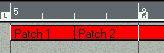
When the program enters the Cycle above, it will play Patch 1. Then, in the middle of the Cycle it will switch to Patch 2. However, it will not switch back to Patch 1 when jumping back to the beginning of the Cycle.
Inspector
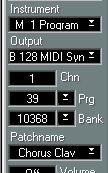
The Inspector has an Instrument field and a Patchname field which can be used to select and view the Instrument and Patch of the selected Track. If only a Track is selected (no Part is selected) this works just like when you select a new Patch or Instrument in the Track list columns.
If one Part is selected, you can use the Inspector to make that Part play a specific Patch, just as when you select a Patch from the Part directly, as described above.• The Patch field will show the name of the Patch for the selected Track/Part.
• The Bank and Prg field will show the Bank Select and Program Change number used to select the Patch. If you click in the field (not on the popup), the Patch Manager opens.
• If a special message (such as System Exclusive or combined Program Change messages) were used to select the Patch, Bank and Prg might show "STU".
About Chase
We recommend you to turn on Cubase’s Chase function when you use the Studio Module. If you do, you will always have the right Patches selected in all your devices, regardless of how you Rewind and Fast Forward, etc.
About Freeze Play Parameter
This function, found on Cubase’s main Functions menu, will make the Patch Change messages in the Parts/Tracks a permanent part of the MIDI data in the Parts. Read more about the use of this parameter in the main Cubase manual.
No Patch Selected and Global Off
To "undefine" a Track that already plays a Patch so that it doesn't play a certain Patch any more, open the Patch Manager as when you select a Patch, and double click on the selected Patch indicator at the top of the window.
 When No Patch is selected (because you haven't done any selection yet or because you have selected No Patch), the Patch column will say "No Patch" for this Track. You can also "unselect" Patches for all Parts on the Track by selecting "Global Off" from the pop-up Functions menu.
 Moving Parts between Tracks
If you move a Part from one Track to another Track that plays the same Instrument, it will play the same Patch as it did on the Track it was previously on. If the Track plays another Instrument, the Part will get the Patch setting of the Track it is moved to.
Selecting Tracks/Parts from the Patch Manager
If you want to select Patches for a number of Tracks or Parts (for which you have already selected the appropriate Instruments) you can do this without closing the Patch Manager in between.
The currently selected Track/Part is shown at the top of the Patch Manager window. There are two ways to select a new Track/Part:
Goto Next/Previous Track/Part
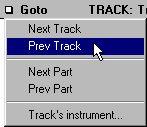
You can use the pop-up Goto menu or the arrow keys on the computer keyboard (the Goto menu shows you which keys to use). When you have the right Track/Part selected, you simply click on a Patch name and that Part/Track will be set to play the Patch.
P The Goto menu only lets you step between Tracks that have Instruments assigned to them.Goto Track's Instrument
You can select Tracks’s Instrument from the Goto pop-up. This invokes a list of all Tracks and the Instruments assigned to them. Click on one to display it.