

Cubase vst-Modules by - HTML preview
Download the book in PDF, ePub, Kindle for a complete version.
Selecting Instruments
This is done as usual, by pulling down the Instrument popup in the Inspector or by clicking the Instrument column for a MIDI Track in the Track list. A pop-up menu appears listing all your devices, or rather the ones you have set to be displayed in the Arrange window, when you made the settings in the Setup window.
If the Instrument you select has several Data Types to choose from, these will appear on yet another list.
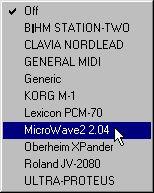
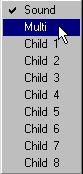
The Studio Module uses the same naming as the manufacturer does in the display and in the manual that comes with the device. However, the Studio Module Instruments are divided into three general categories (if you know the modes of your instrument you will understand what they correspond to):
Single Type Instruments.If the device only has one type of Patch this is it. Some devices which can receive on several MIDI channels can also be switched to a mode where they receive on one MIDI Channel only. Select this type of Instrument when you want to play a single sound on the device.
Parent Type Instruments.If you have a multitimbral instrument, where you can store several multitimbral setups, you can set the Track to this type of Instrument. This will allow you to use the Patch Manager to select between different multitimbral setups. It will also make the Studio Module "aware" of how the multitimbral setup is defined, which "Child Instruments (see below) receive on which MIDI Channels, etc.
If you see the text "(Multi)" after an Instrument category, please look up page 156.Child Type Instruments.
If you have a multitimbral Instrument, the menu will list these Children, each with a number. These each represent a MIDI Channel in the device.
This terminology is explained in more detail on page 166.
P Most instruments can only be in either "Single Mode" or "Parent Mode". In this case it doesn’t really make sense to set one Track to play the Instrument in its "Single Mode" and another to play it in its "Parent Mode". Please try to avoid this since it will lead to confusion when selecting Patches (see below).
P If you select a new Instrument category (Single, Parent, Child) for a Track, all Parts and the Track will be set to "No Patch", in other words, the Track/Parts will no longer be set to play any particular Patch.
If you happen to open a Song where a Track has been set to play a device which is not in your Setup, the Instrument column will show "Unknown Instrum". See page 147 for more info.
Please note that you don't have to use all the Children ("multitimbral slots") in a device if you don't want to. In Setup you can define yourself how many and which MIDI Channels in a device you want to use, by turning off (muting) some Child MIDI Channels. This will also make the Instrument pop-up shorter and less cluttered.
Auto Extraction of Channels
Some multitimbral Instruments always receive on the same set of MIDI Channels (for example 1 to 8 or 1 to 16). With others there are a number of "slots" which can each be set to play one Patch on one MIDI Channel. To make the Studio Module aware of which MIDI Channels are currently available in such a device, proceed as follows:
1. Create a MIDI Track. Pull down the menu in the Instrument column and select “Studio Instruments”, then select the item that corresponds to the "Parent" mode. 2. Select a "Parent Patch" for the Track, as described below. This will make the Studio Module aware of how the MIDI Channels are organised in that particular "Parent Patch".3. Select a new Track. Pull down the menu in Instrument column and select “Studio Instruments”, then select one of the "Child Instruments" for the device. This will be indicated by a text followed by a number, or by just a number, depending on how you set things up in the Setup window.
4. Now the Track will be set to the correct Output and MIDI Channel automatically.Working with Assignable MIDI Channels
Please beware when you have a multitimbral device with freely assignable MIDI Channels. If you set it up so that several different sounds are played on the same MIDI Channel, things will not work as expected. When you later select Patches, all those Children that are set to the same MIDI Channel will be switched to the same Patch, since they will receive the same Program Change messages on the same MIDI Channel (which is probably not what you want).
In fact if you have such a device, we recommend you to set up one "scratch" multitimbral setup (Parent Patch), where all Children are set to different MIDI Channels (For example 1 to 8). If you run out of channels, turn off the ones you don't think you will use, both in the actual device, and by "muting" Child MIDI Channels in the Setup dialog. You can even make up a DEF.ALL song with this Parent Patch selected on a Track, so that you make sure the device is always initiated to the correct state.
If you follow this advice, the Studio Module will always make sure that when you load a Song, the correct Parent Patch is switched in, and all its "Child Patches" are assigned, automatically.