

Cubase vst- Getting into the Details by - HTML preview
Download the book in PDF, ePub, Kindle for a complete version.
MIDI Remote Control
P Remote Control of the VST Mixers is set up separately, as described in the chapter “Remote Controlling VST Objects”.Just as you can use Key Commands or the Toolbar to perform specific commands and functions, you can also use MIDI messages to trigger commands. For example, this allows you to control the transport without taking your hands off your MIDI instruments.
P The MIDI Remote Control settings are saved in the Cubase Preferences, and included when you save or open Keyboard Layout files (see page 640).You set up and activate MIDI Remote Control in the Key Commands dialog. Proceed as follows:
1. Open the Preferences–Key Commands dialog.
2. Use the tabs and the scroll bar to locate the function which you want to control via MIDI.
3. Point in the “Event Type” column for the function and press the mouse button.
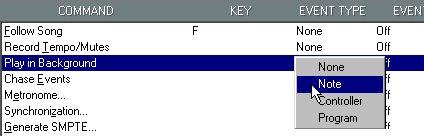 4. On the pop-up menu that appears, choose which type of Event should be used to control the selected function:
Option
None
Note
Controller
Description
Selecting this is the same as turning off MIDI Remote Control for the function. This allows a certain MIDI key to activate the function.
This makes a certain Program Change number activate the function. The Event field is used to specify which Program Change number should be used (see below).
5. Use the “Event” column to specify exactly which note, Controller or Program Change Number should be used to control the function.
Scroll the value up or down, or double click and type in a value numerically.
P If you use a Controller as a remote, the function will be activated whenever a value above 0 is received. This means that if you for example use a foot switch you'll activate the function each time you press the pedal. If you use a modulation wheel or slider, you will activate the function as soon as you move it.
6. Repeat steps 2 to 5 for any other functions you wish to Remote Control.P Make sure that a certain MIDI Event is not used for more than one function. If the same Event is used for several functions, only one of these functions (the first in the list) will be affected.
7. If you like, activate the “Remote Key” checkbox and use the value field to the right to specify a key.
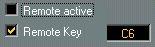 This function is handy if you have specified that some keys should be used for Remote Control, but still want to be able to use these keys for playing and recording:
 • If the “Remote key” function is activated, you have to hold down the specified Remote key for the keys to work as Remote Controls.
For example, if you have set up the key C3 to control Click On/Off, and specified the key A6 as “Remote Key”, you have to hold down A6 and press C3 to turn Click on or off.
• If the “Remote key” function is not activated, pressing a key assigned as Remote Control will always activate the corresponding function (which makes it impossible to use this key for playing).
In our example, this means that pressing C3 would always turn Click on or off.8. Finally, activate the “Remote Active” check box.
This is a global on/off switch for the whole Remote Control feature. You can also use a key command for this (by default [Y]).