

The Definitive Guide to Protecting Kids Online by Jack Hughes - HTML preview
Download the book in PDF, ePub, Kindle for a complete version.
Chapter 2: Apple’s Screen Time and Beyond
The Basics of Built-In Controls
As technology integrates further into our lives, the tools for managing its use—especially for children—have become more sophisticated. Apple’s Screen Time is one of the most accessible and versatile parental control systems available. While it might seem straightforward, understanding its full range of features can make a significant difference in protecting your child from inappropriate content, unhealthy usage habits, and digital burnout. Here’s a practical breakdown of what you need to know.
Screen Time 101
Apple’s Screen Time is a built-in feature available on all iOS devices, providing parents with control over how much time children spend on their devices and what they can access. To enable it, start by navigating to Settings on your child’s device. Scroll down to the Screen Time section and tap to turn it on. The setup process will guide you through creating a passcode. This is critical, as it ensures your child cannot override restrictions without your approval.
Once activated, you’ll gain access to a comprehensive dashboard displaying app usage, website activity, and the total screen time spent on the device. For parents looking to manage gaming or social media usage, this feature is invaluable. You can set daily app limits to cap time spent on specific categories like games or social platforms. For instance, limiting TikTok or Roblox to 30 minutes per day can prevent excessive use while encouraging a healthier balance of activities.
The Content & Privacy Restrictions section further empowers parents by allowing them to block explicit content, limit access to adult websites, and restrict purchases or app downloads. These features ensure your child isn’t accidentally exposed to harmful content or spending money without your knowledge. While setting these restrictions, it’s important to explain their purpose to your child, framing it as a tool for safety rather than punishment.
Downtime and Communication Limits
A feature of Screen Time is the ability to schedule "downtime." This allows you to set specific periods—like bedtime or school hours—when only essential apps and functions are accessible. Scheduling downtime ensures your child can focus on important activities, such as sleeping or studying, without distractions from games, notifications, or social media.
Communication limits add another layer of control by restricting who your child can contact during downtime. For example, you might set it so they can only call or message immediate family members at night. This feature is particularly useful for maintaining a balance between accessibility and boundaries. To enable these settings, navigate to Settings > Screen Time > Communication Limits. From here, you can customize contact permissions based on your family’s needs.
The Activity Reports feature provides parents with detailed insights into how their child uses their device. It’s a valuable tool for identifying patterns or potential issues, such as spending excessive time on gaming apps during study hours. Reviewing these reports together with your child can foster accountability and open dialogue about digital habits.
Common Pitfalls and Fixes
Even with its robust features, Screen Time isn’t foolproof. One common issue parents face is buggy updates. For example, if the operating system isn’t updated, certain restrictions may fail to function properly. Staying current with software updates ensures the reliability of parental controls and access to new features.
Another challenge involves weak passcodes. Children are often more tech-savvy than we realize, and some might attempt to shoulder-surf or guess their way into settings. To counter this, use a complex passcode that your child cannot easily deduce. Avoid using common numbers like birthdays or repeating digits, and consider enabling Face ID or Touch ID for an added layer of security.
One clever workaround some children use is deleting and reinstalling apps to bypass time limits. This resets the timer, allowing them to continue using restricted apps. To address this, go to Settings > Screen Time > Content & Privacy Restrictions and disable the ability to delete apps. This simple step can prevent one of the most common workarounds and reinforce the boundaries you’ve set.
Practical Advice for Parents
Implementing these controls is just one part of the equation. Equally important is maintaining ongoing communication with your child about their device use. Explain the "why" behind restrictions to help them understand these measures aren’t about punishment but rather promoting healthier habits.
Additionally, it’s helpful to establish a family agreement on technology use. This could include rules like no devices at the dinner table or a commitment to weekly check-ins about screen time usage. These discussions can create a sense of shared responsibility and make it easier to enforce rules consistently.
Lastly, remember that no tool—no matter how sophisticated—is a substitute for active parenting. Regularly review settings, discuss online experiences, and adapt restrictions as your child grows and matures. Technology will continue to evolve, but with vigilance and a proactive approach, you can help your child navigate it safely and responsibly.
Plugging the Loopholes
Even with robust parental controls, kids often find ways to bypass the restrictions adults set up. They’re naturally curious, tech-savvy, and motivated to access the full capabilities of their devices. To stay ahead of these challenges, parents must understand the common loopholes children exploit and proactively implement strategies to close them. Let’s examine how to address these gaps using practical solutions.
The Google Sign-In “Backdoor”
A frequent method kids use to bypass restrictions involves third-party app logins through Google. Many parental control systems are designed to monitor and restrict activity within a specific device’s app ecosystem. However, apps that allow login using a Google account can act as gateways to blocked websites or apps. For example, even if a browser is restricted on a device, a child might open a browser within a game or another app by logging in with their Google credentials.
To address this, parents can configure devices to operate under the "Allowed Websites Only" setting rather than the broader "Limit Adult Content" option. This stricter mode allows access exclusively to pre-approved websites, effectively neutralizing unauthorized browsing.
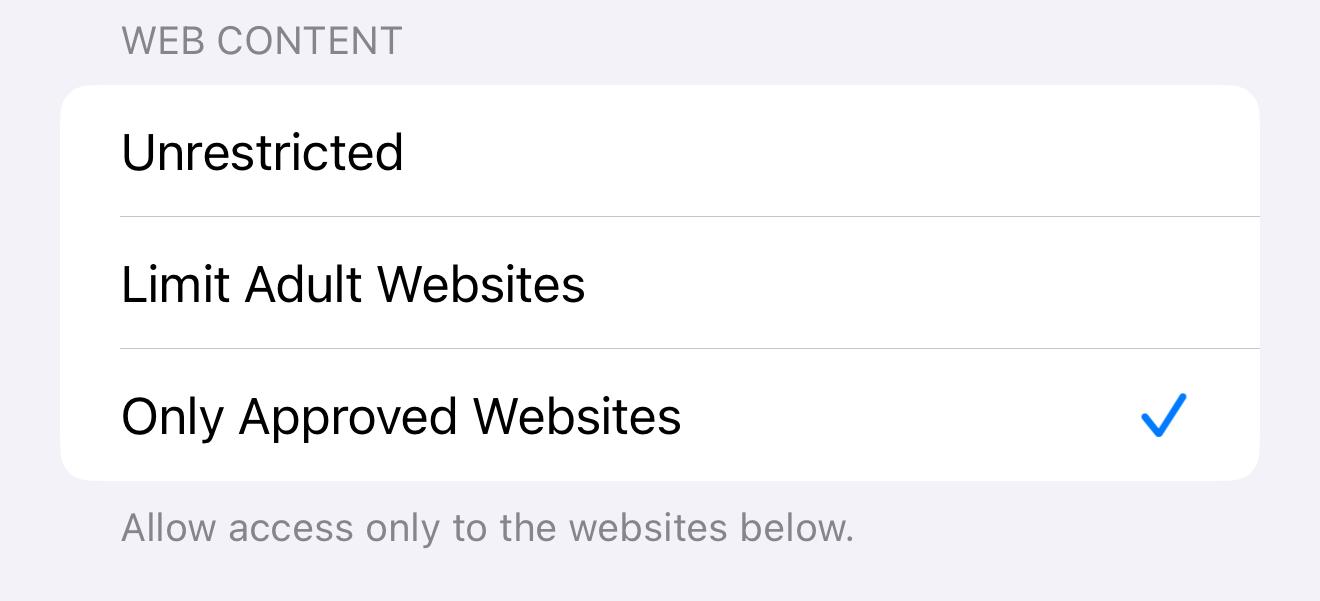
Additionally, third-party browsers like DuckDuckGo or Firefox—which often bypass traditional filters—should be completely blocked. By disabling the ability to download or use these apps through Settings > Screen Time > Content & Privacy Restrictions, parents can eliminate a significant loophole.
However, no system is foolproof. Regular audits of installed apps are essential to ensure new third-party browsers haven’t been downloaded or reinstalled. Parents should take a hands-on approach, frequently reviewing app activity and talking to their children about why certain restrictions exist. Framing these controls as a means of protection, rather than punishment, helps foster understanding and cooperation.
Notifications as Unlimited Screen Time
Another subtle loophole involves notifications. Many apps, particularly messaging and social platforms, allow users to interact directly with notifications, effectively bypassing screen time restrictions. For instance, even if Youtube is blocked after a set time, a child might still watch videos by tapping on a notification link.
To close this gap, parents can disable interactive notifications for non-essential apps. Within Settings > Notifications, turn off previews or entirely block notifications from apps that children are prone to overusing. Additionally, enabling Do Not Disturb during specific hours, such as school time or bedtime, ensures that notifications don’t serve as distractions.
Monitoring odd patterns in Screen Time reports can also be revealing. If a child’s usage doesn’t align with the time spent actively using apps, it could indicate they are interacting with notifications or finding alternative access methods. Discuss these findings with your child to better understand their habits and make necessary adjustments.
VPNs and Third-Party Workarounds
Virtual Private Networks (VPNs) are another common method kids use to sidestep parental controls. By masking their internet activity, VPNs can make it appear as though the device is accessing content from a different location, rendering restrictions ineffective. Many VPNs are free and easy to install, making them an appealing choice for tech-savvy children.
To prevent VPN use, start by blocking the installation of unapproved apps. Navigate to Settings > Screen Time > Content & Privacy Restrictions > iTunes & App Store Purchases, and disable the ability to download new apps without parental approval. Additionally, regularly review installed apps to ensure no VPNs are active.
Blocking VPN usage at the router level is an even stronger line of defense. Many modern routers allow parents to restrict VPN traffic entirely, ensuring that even if a VPN app is installed, it cannot connect to its servers. Combining this with tools like OpenDNS adds another layer of protection by filtering all internet activity on your home network.
An ongoing audit process is key to maintaining a secure device environment. Encourage your child to openly discuss their online experiences and any tools they’ve encountered that might bypass restrictions. This dialogue not only helps build trust but also gives you insight into emerging technologies and potential threats.
Building a Culture of Digital Responsibility
While plugging these loopholes is important, the ultimate goal is to teach children digital responsibility. Even the best parental controls won’t replace the values and habits instilled through open communication and guidance. Regularly discuss the reasons behind restrictions, emphasizing how they are designed to protect rather than punish.
Additionally, involve your child in setting some of the rules. Giving them a voice in the process makes them more likely to respect boundaries. For instance, you might agree on app limits together or let them propose alternatives to restricted activities.
As technology evolves, so do the methods kids use to navigate around restrictions. Staying informed, maintaining open lines of communication, and adapting to new challenges are the most effective ways to ensure your child’s online safety. With the right combination of technical tools and thoughtful parenting, you can create an environment where your child feels supported and secure in their digital journey.
Strengthening Your iOS Shield
Parental controls on Apple devices are a robust first line of defense, but building a comprehensive and effective digital safety framework requires active management and strategic use of these tools. By fine-tuning settings, regularly monitoring activities, and staying informed, you can create a digital environment that prioritizes safety while maintaining flexibility for growth and exploration. Let’s delve into the key strategies to strengthen your iOS shield.
Pinpointing Key Settings
One of the most effective ways to control your child’s device usage is by enabling the "Ask to Buy" feature through Family Sharing. This setting not only ensures that your child must request permission before downloading new apps but also gives you an opportunity to discuss the suitability of their choices. To enable this, navigate to Settings > Family Sharing and turn on "Ask to Buy" for your child’s account. Additionally, restricting app installation and deletion can prevent children from bypassing controls by cycling through apps or downloading unauthorized programs. These settings can be configured under Screen Time > Content & Privacy Restrictions > iTunes & App Store Purchases.
Equally important is leveraging iCloud Family Sharing for consistent oversight across all devices. By linking your child’s iPhone, iPad, and Mac under one Family Sharing account, you can monitor activity, set restrictions, and share content like educational apps or books seamlessly. This unified system reduces the likelihood of overlooked loopholes, especially when children switch between devices.
Regularly Reviewing Search History
Monitoring search history is an essential step in ensuring your child’s online activity aligns with your family’s values. Adopting what’s often referred to as the “prison security guard” mindset can be helpful. This doesn’t mean scrutinizing every click but rather conducting periodic reviews to identify patterns or concerning behavior. Tools like Screen Time’s Web Content Restrictions make it easier to filter out inappropriate websites, but no system is foolproof. Regularly checking browser histories adds a layer of accountability.
Establishing weekly check-ins with your child about their online activity can turn monitoring into a collaborative effort. Use this time to discuss any questions or concerns they might have, and reinforce the values of safe and responsible browsing. When done constructively, these conversations can foster trust and encourage openness rather than secrecy.
However, there may be times when privileges need to be temporarily revoked. For example, if a child repeatedly violates agreed-upon boundaries or accesses prohibited content, taking away certain digital privileges can serve as an effective consequence.
Managing Multiple Devices
Ensuring consistent rules across multiple devices is crucial for maintaining effective parental controls. Apple’s ecosystem makes this relatively straightforward, allowing parents to synchronize restrictions and settings through Family Sharing. For instance, if you’ve restricted certain apps or websites on an iPhone, those same restrictions will apply on an iPad or Mac linked to the same account. This consistency minimizes confusion and prevents children from exploiting differences between devices.
Cross-platform differences, however, can complicate matters when families use a mix of iOS and Android devices. While Apple’s Family Sharing provides a seamless experience within its ecosystem, tools like Google’s Family Link are necessary for Android devices. Understanding the strengths and limitations of each platform helps parents create a cohesive strategy for monitoring and restricting device usage. For example, Family Link excels at app approval and location tracking, making it a valuable complement to Apple’s tools in mixed-device households.
Staying current with software updates is another essential aspect of managing multiple devices. Apple regularly releases updates that enhance security features, patch vulnerabilities, and improve parental controls. Ensuring that all devices are running the latest operating system reduces the risk of outdated settings being exploited.
Building a Culture of Awareness and Responsibility
The most effective parental controls go beyond technology. They involve cultivating a culture of digital awareness and responsibility within the family. Start by discussing the "why" behind each restriction and involving your child in setting some of the rules. For instance, if you decide to limit social media usage to 30 minutes a day, explain how excessive screen time can impact mental health and academic performance.
Encourage your child to develop their own strategies for self-regulation. This might include setting personal goals, such as limiting device use before bed or dedicating specific times for homework without digital distractions. When children understand the rationale behind restrictions and participate in creating them, they are more likely to take ownership of their digital habits.
Another effective strategy is leading by example. Demonstrate responsible device usage in your own life, such as putting your phone away during meals or prioritizing face-to-face interactions over digital communication. When children see their parents practicing what they preach, they are more likely to follow suit.
The Road Ahead
Strengthening your iOS shield requires more than just technical know-how; it demands an ongoing commitment to fostering trust, communication, and accountability. By fine-tuning key settings, regularly reviewing activity, and maintaining consistency across devices, you can create a digital environment that promotes safety and responsibility. As technology continues to evolve, staying informed and adaptable will be your greatest assets in protecting your child’s online experience.