
The Ultimate Guide to Dominating Google Business Profile by Dennis Yu - HTML preview
Download the book in PDF, ePub, Kindle for a complete version.
Why Take Care of your Google Business
Profile
A lot of companies and a lot of agencies believe that Google Business Profile is a set-it-and-forget-it type of thing. You are going to optimize it one time and walk away.
It is not.
You have to manage your Google Business Profile — it’s worth it, since 90% of your business will come from it.
Get those reviews — 86% of people want to see ones from the past two weeks.
Don’t game the system. If you’re serious, build your brand the right way.
It’s easy to knock out someone who doesn’t follow the rules.

TAKE ACTION: SEND ME AN EMAIL!
Before getting into the nitty gritty, I want to give a sense of accountability to this process.
Send an email to stephanie@yourcontentfactory.com with the subject line ‘First Steps Into GBP’ and say, ‘I’m committed to optimizing my GBP profile and getting more leads!’
Know that I will read it, and I will reply. Commit now and let’s do this!

What is Google Business Profile
Google Business Profile (GBP) is a free tool from Google that lets business owners manage their online presence across Search and Maps. By verifying and editing your business information, you can help customers find your business and tell them your story.
It also helps you use Google Merchant Center’s free tools like appearing in Google Shopping, Images, Search, and even Google Lens — a visual search tool available in the U.S.
Don’t assume everyone uses the same platform—your customers are scattered across different channels.
GBP helps your business appear in more places, adds credibility, and shows customers you’re worth a closer look.
The biggest misconception we hear a lot is about Google Search, which we call the library. Many people think Google is the World Wide Web, but it’s actually the biggest library on it.
Some businesses believe Google’s bot will find their site within 90 days. But for small businesses, where cash flow is critical, you might run out of time before reaching the right customer.
Use these strategies to get new clients to notice your business.
Before getting into actual action steps, let’s take a look at what a GBP profile looks like.
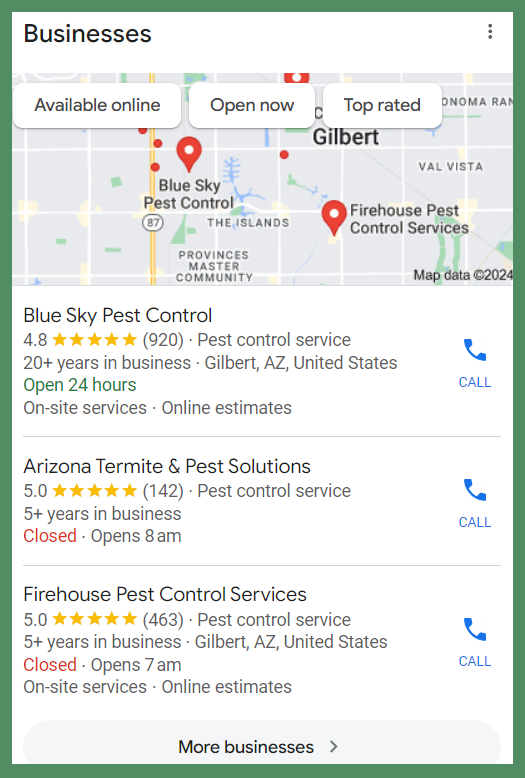
When you search on Google, you’ll see top businesses in the area related to your keywords.
For example, if you’re in Gilbert, Arizona, and search for a pest control service on Google, you should see the following three services at the top of the local search.

That's called the local three-pack, and you want to be in it.
Whether you use your phone, desktop, or iPad, it will show three results. That's why it's called the local three-pack.
You can click ‘View All’ to see more, but most people don’t — if you’re not in the top 3, you’ll get much less traffic.
Let’s look at one. While 80–85% of searches happen on mobile, we’ll use a desktop view for visibility.
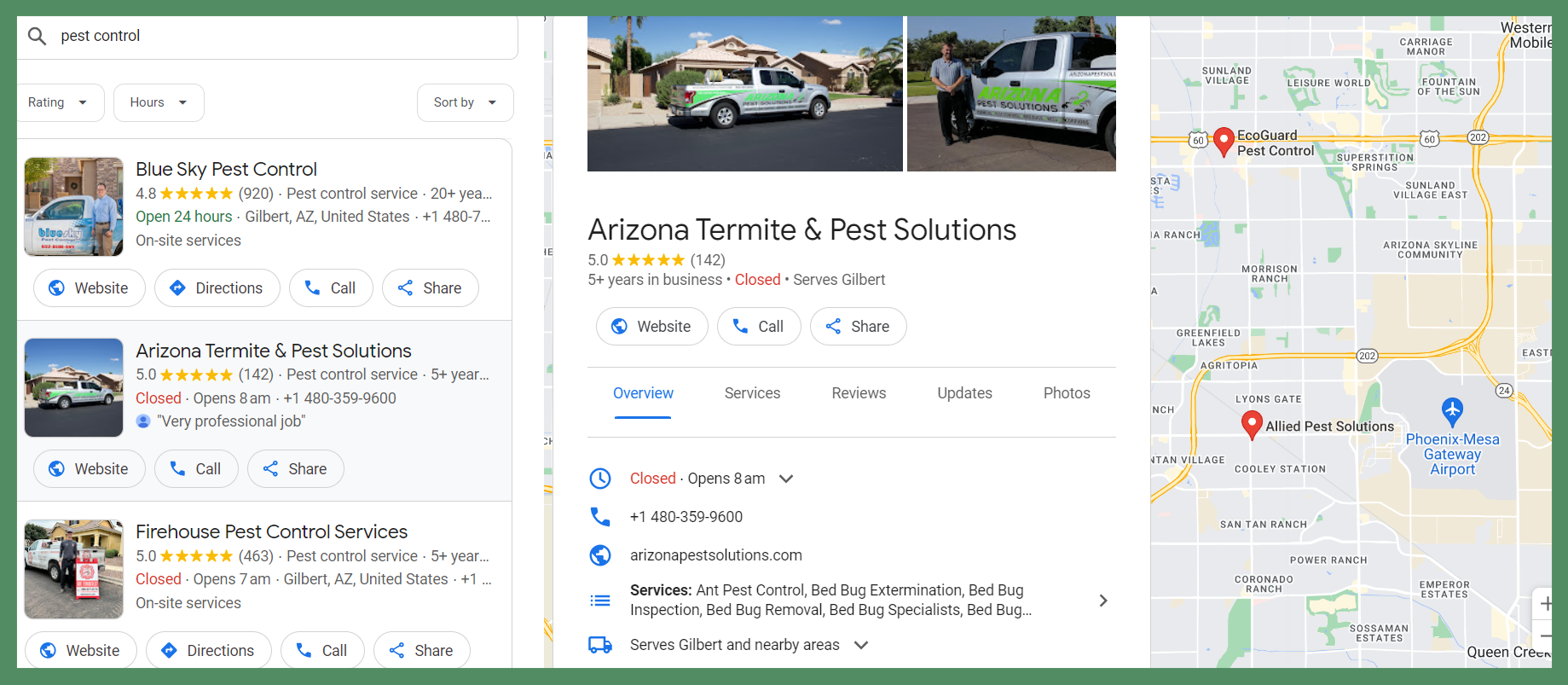
When someone clicks on ‘Arizona Termite & Pest Solutions’ this is what they’ll see:

A Google Business Profile listing is like a mini website. It has sections that must be filled out for people to get value from their time.
But before we get into that, let’s start with the foundation.
Want to rank in the top 3? Read ‘How to Rank in the Top 3 on Google My Business’ and follow the steps.

How To Setup Your Google Business Profile
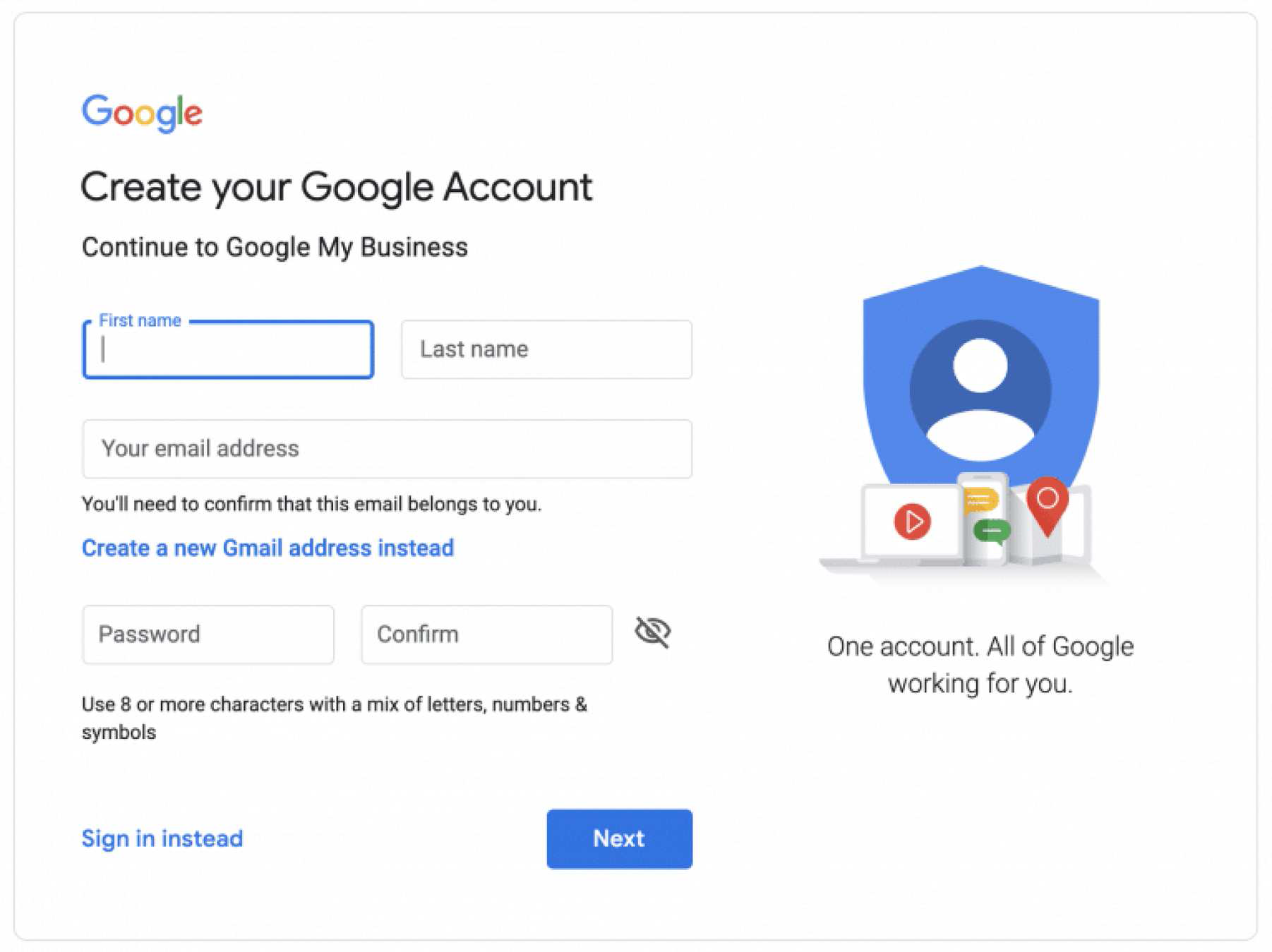
Step 1: Sign in to Google Business Profile
Go to www.google.com/business to sign in. You can either sign in with a pre-existing Google account or create a new one. If you’re already signed in, skip ahead to the next step.
Tip: Make sure you sign up with your business email domain.
Step 2: Add your business
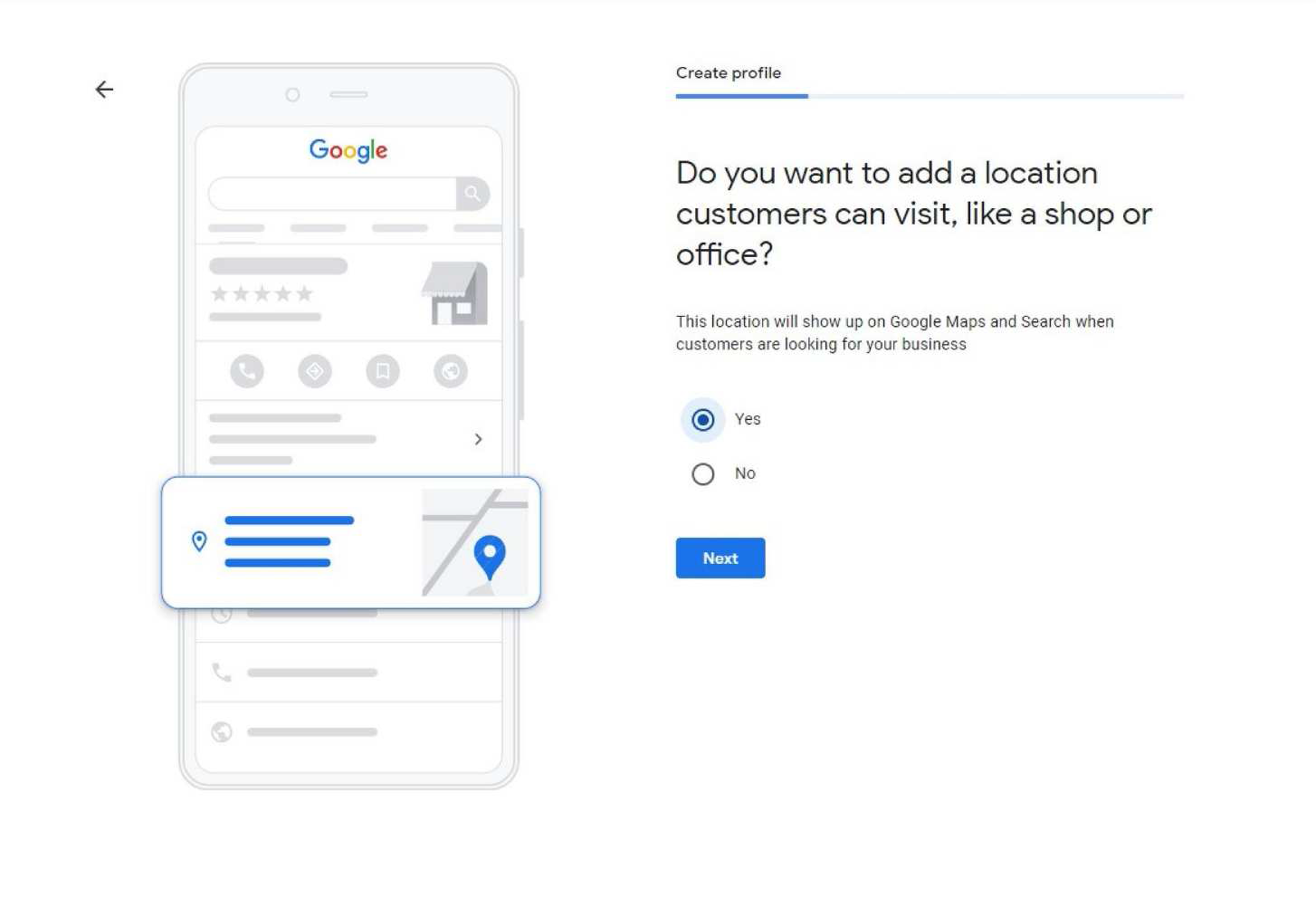
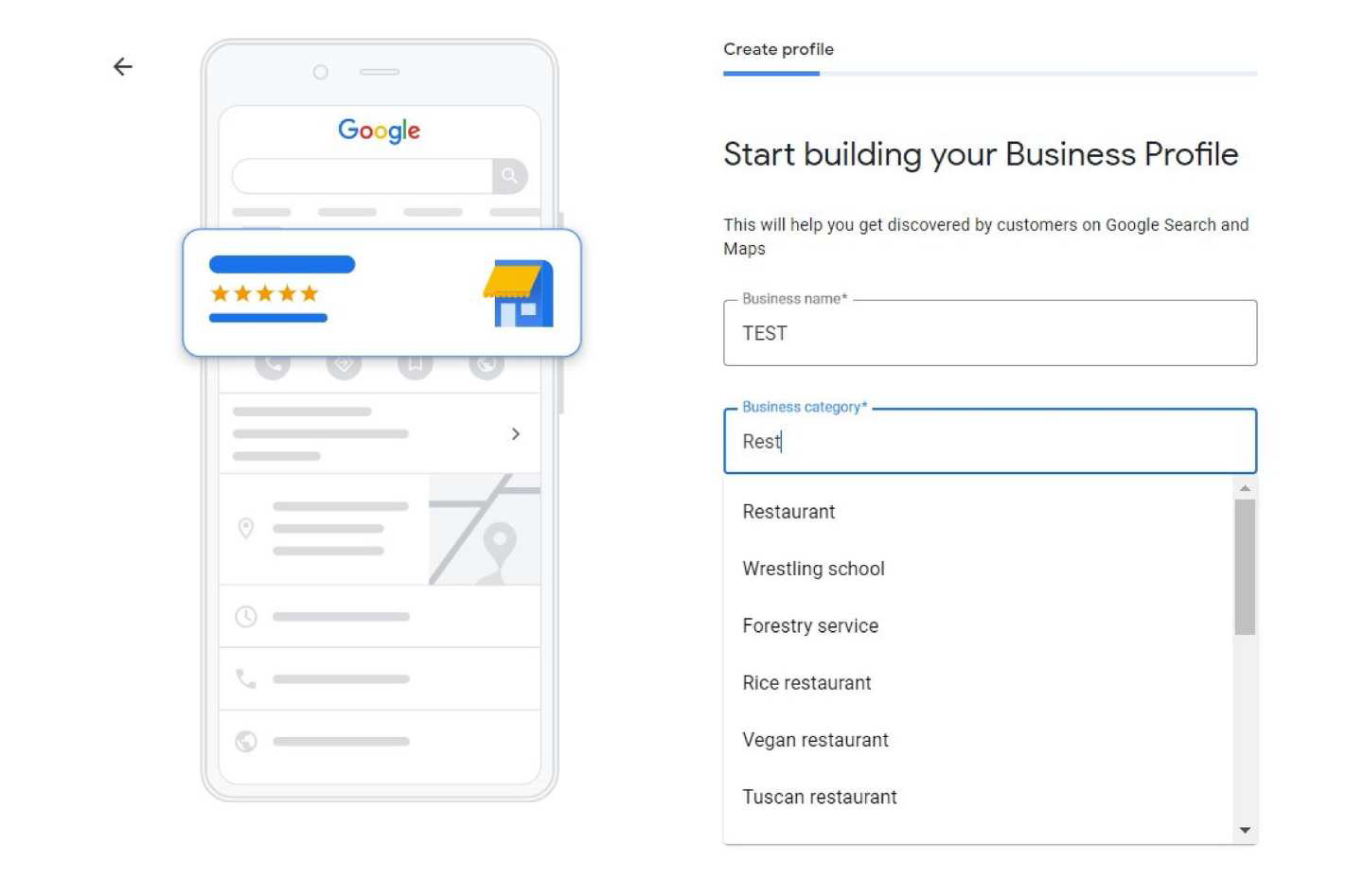
Enter your business name. If it does not appear in the drop-down menu, click Add your business to Google. Then select the appropriate category for your business.

The name is the first signal you need to pay attention to if you want to drive more traffic. Make sure your listing name has keywords and matches your actual business name.
Your main category must align with your business, but you can have eight or nine more.
And those you can change up, depending on what people care about more.
Don’t know which subcategories to use? You can use GBP Spy — a Chrome extension — to see what your top-ranking competitors are using. Pleper is another great free tool.
The primary purpose of these tools is to show you the categories that get the most views.
Why is that important?
You might find that the business ranking 1st or 2nd is using a category you never considered.
Step 3: Enter your location
If you have a physical location that customers can visit, select Yes.

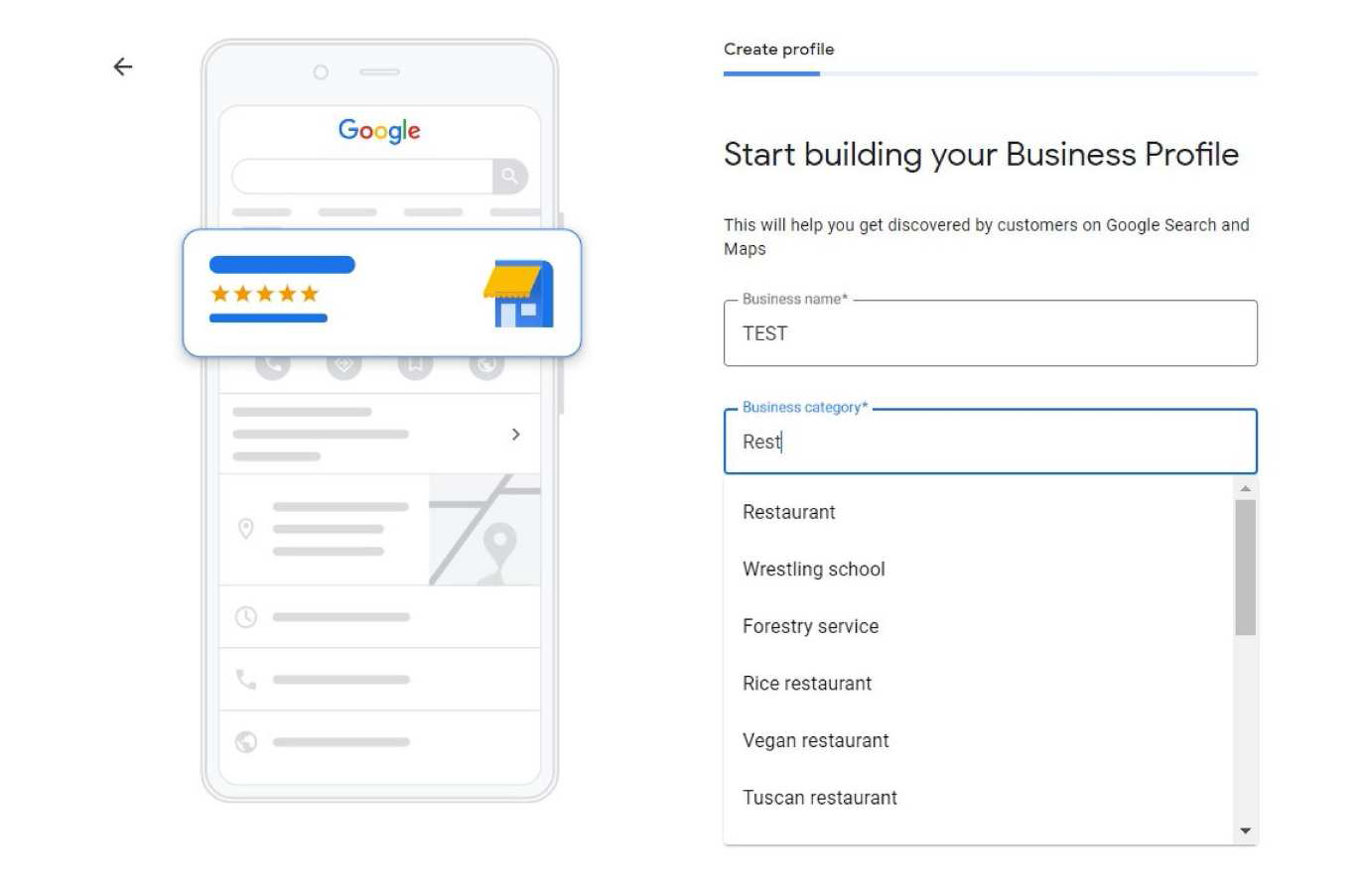
Then add your address. You may also be asked to position a marker for the location on the map.
If your business doesn’t have a physical location for customers but offers services or delivery, list your service area to show where you operate.
Step 4: Fill in your contact information
Enter your business phone number and website address so customers can reach you. If you use a Facebook page rather than a website, you can add that instead.

However, a website would be a better option. If your website is ranking well organically, that’s going to help drive local traffic to your GBP profile.
The content of your website will actually impact the queries that you show up for.
You can use Google Business Profile Queries to see how you’re performing if you don’t know already.
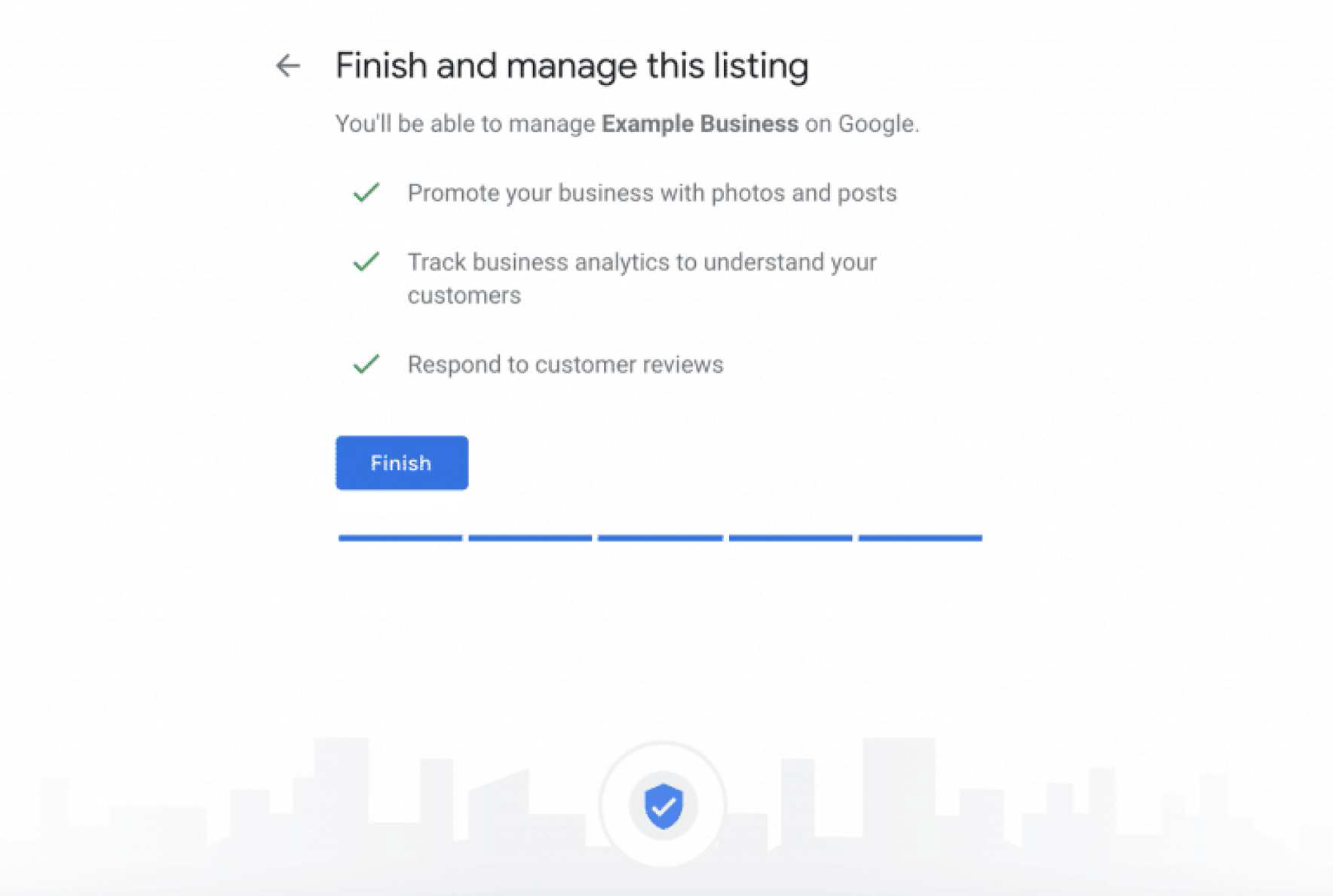
Step 5: Finish and manage your listing
Check Yes if you would like to receive updates and notifications. Then click Finish. You’ll be asked to verify your business.
If you need step-by-step instructions to create your profile, read: How to Set up a
Google Business Profile For Your Business