

Entity Framework - Simplified by Mohd Manzoor Ahmed - HTML preview
Download the book in PDF, ePub, Kindle for a complete version.
Chapter 3: Exploring Entity Data Model
In this chapter we are going to explore the class that gets generated whenever we
create Entity Data Model
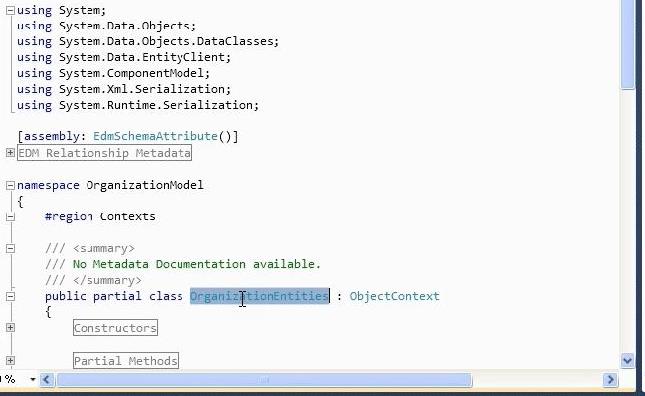
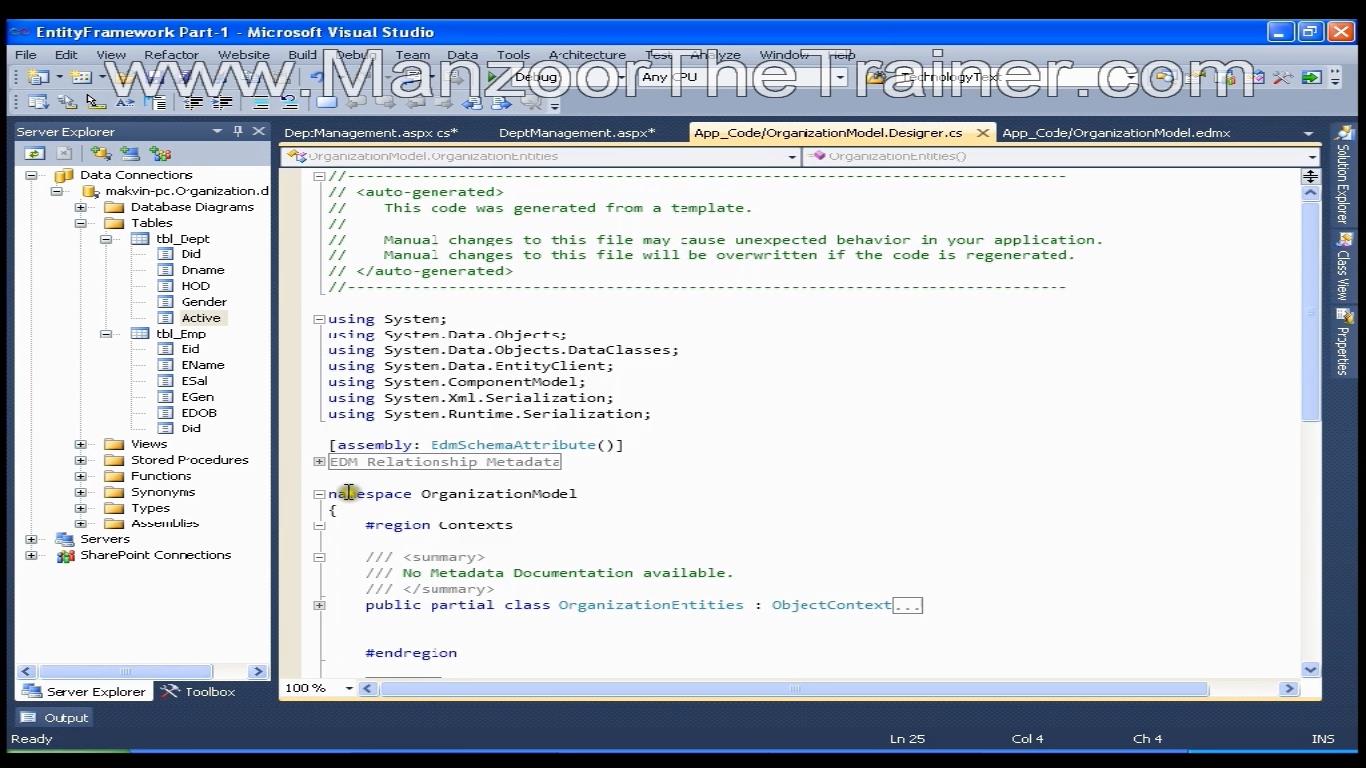
The class is OrganizationModel.Designer.cs and I’ll double click this file.
Now, there are two important things that you need to remember from this file
www.ManzoorTheTrainer.com


17
Entity Framework - Simplified
1. Namespace (You got namespace as OrganizationModel)
namespace OrganizationModel {}
o Hope you might have remembered when we were creating Entity Data Model,
In the wizard we gave the name of the model as OrganizationModel.
o So “OrganizationModel” is the namespace.
o On the page wherever you need to access the data with the help of Entity
Data Model, You need to say Using OrganizationModel; i.e., you need to add
this namespace on the page wherever you code.
2. The Object contexts that we have that is OrganizationEntities
o You need to create the context object whenever you want to work with Entity
Data Model.
o So, this class is present in the OrganizationModel namespace that’s why we
need to add this namespace and create the object of this class.
www.ManzoorTheTrainer.com


18
Entity Framework - Simplified
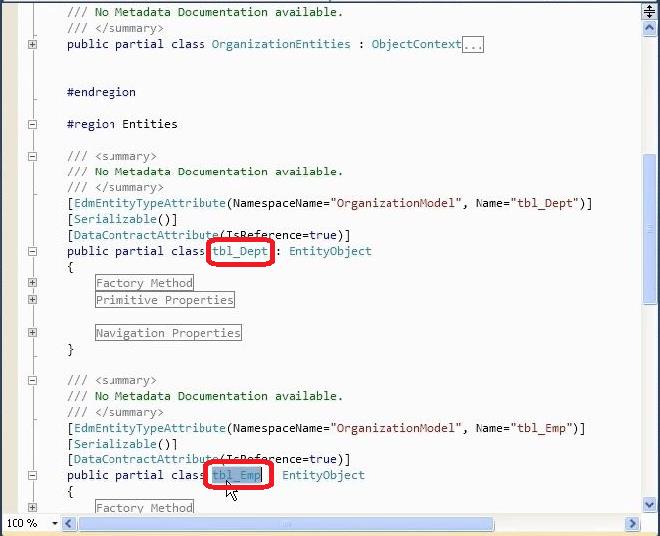
Let us see the entities that got created for each table.
So, we should have 2 entities. Entities are nothing but the objects – the classes.
o public partial class tbl_Dept : EntityObject
o public partial class tbl_Emp : EntityObject
www.ManzoorTheTrainer.com


19
Entity Framework - Simplified
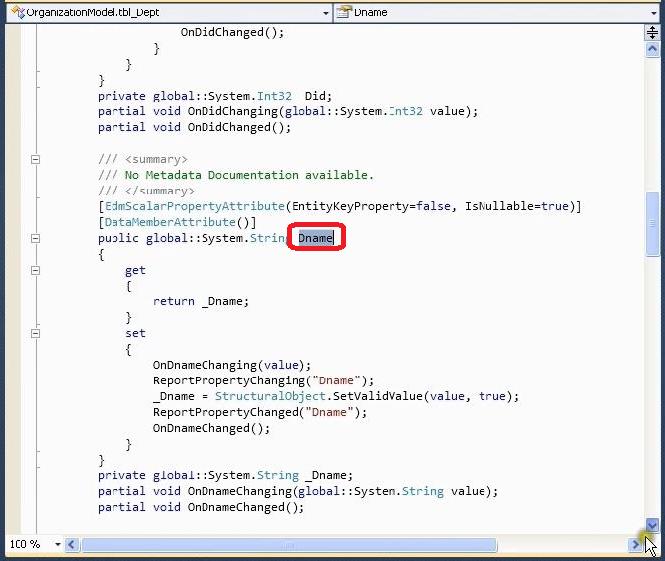
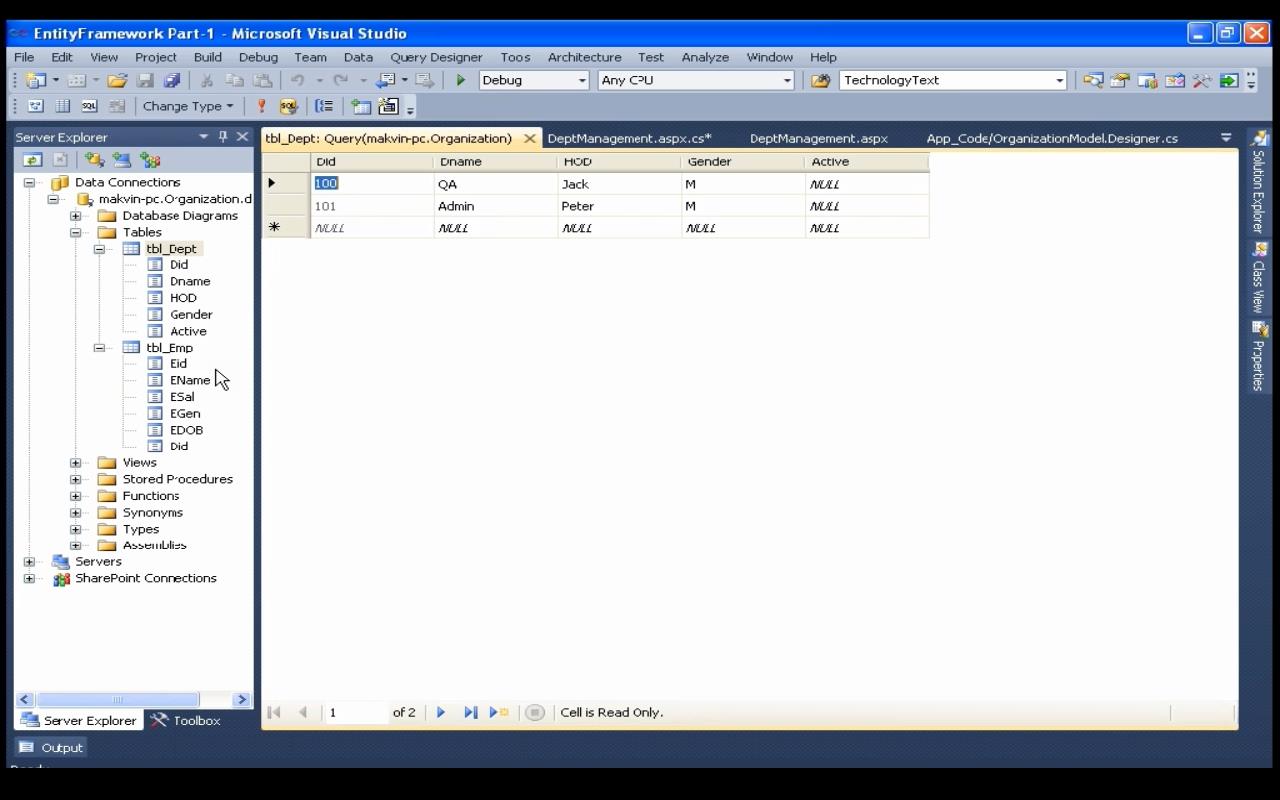
So, I’ve got one entity that is Department tbl_Dept and the other entity that is
tbl_Emp and they contains the properties Did(Department ID) which is of type
int, (DName) Department name, HOD and Gender for tbl_Dept.
public global::System.Int32 Did
{
get
{
return _Did;
}
set
{
if (_Did != value)
{
OnDidChanging(value);
ReportPropertyChanging("Did");
_Did = StructuralObject.SetValidValue(value);
ReportPropertyChanged("Did");
OnDidChanged();
}
}
}
www.ManzoorTheTrainer.com


20
Entity Framework - Simplified
public global::System.String Dname
{
get
{
return _Dname;
}
set
{
OnDnameChanging(value);
ReportPropertyChanging("Dname");
_Dname = StructuralObject.SetValidValue(value, true);
ReportPropertyChanged("Dname");
OnDnameChanged();
}
}
public global::System.String HOD
{
get
{
return _HOD;
}
set
{
OnHODChanging(value);
ReportPropertyChanging("HOD");
_HOD = StructuralObject.SetValidValue(value, false);
ReportPropertyChanged("HOD");
OnHODChanged();
}
}
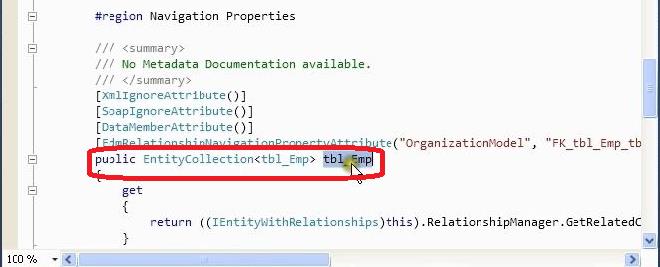
It also contains one extra property that is nothing but the Navigation property
that means we say whenever there is a primary and foreign key relationship it is
creating a property that is called as Navigation property.
From department table we can move to Employee table with the help of
Navigation property called as tbl_Emp.
public EntityCol ection<tbl_Emp> tbl_Emp
www.ManzoorTheTrainer.com


21
Entity Framework - Simplified
{
get
{
return
((IEntityWithRelationships)this).RelationshipManager.Get RelatedCollection<tbl_Emp>("
OrganizationModel.FK_tbl_Emp_tbl_Dept", "tbl_Emp");
}
set
{
if ((value != nul ))
{
((IEntityWithRelationships)this).RelationshipManager.InitializeRelatedCollection
<tbl_Emp>("OrganizationModel.FK_tbl_Emp_tbl_Dept", "tbl_Emp", value);
}
}
}
public global::System.Int32 Eid
{
get
{
return _Eid;
}
set
{
if (_Eid != value)
{
OnEidChanging(value);
ReportPropertyChanging("Eid");
_Eid = StructuralObject.SetValidValue(value);
ReportPropertyChanged("Eid");
OnEidChanged();
}
}
}
public global::System.String EName
{
get
{
return _EName;
}
set
{
OnENameChanging(value);
ReportPropertyChanging("EName");
_EName = StructuralObject.SetValidValue(value, false);
ReportPropertyChanged("EName");
OnENameChanged();
}
}
public global::System.Double ESal
{
get
{
return _ESal;
}
set
{
www.ManzoorTheTrainer.com


22
Entity Framework - Simplified
OnESalChanging(value);
ReportPropertyChanging("ESal");
_ESal = StructuralObject.SetValidValue(value);
ReportPropertyChanged("ESal");
OnESalChanged();
}
}
public global::System.String EGen
{
get
{
return _EGen;
}
set
{
OnEGenChanging(value);
ReportPropertyChanging("EGen");
_EGen = StructuralObject.SetValidValue(value, false);
ReportPropertyChanged("EGen");
OnEGenChanged();
}
}
public global::System.DateTime EDOB
{
get
{
return _EDOB;
}
set
{
OnEDOBChanging(value);
ReportPropertyChanging("EDOB");
_EDOB = StructuralObject.SetValidValue(value);
ReportPropertyChanged("EDOB");
OnEDOBChanged();
}
}
public Nul able<global::System.Int32> Did
{
get
{
return _Did;
}
set
{
OnDidChanging(value);
ReportPropertyChanging("Did");
_Did = StructuralObject.SetValidValue(value);
ReportPropertyChanged("Did");
OnDidChanged();
}
}
www.ManzoorTheTrainer.com


23
Entity Framework - Simplified
public EntityReference<tbl_Dept > tbl_DeptReference
{
get
{
return
((IEntityWithRelationships)this).RelationshipManager.Get RelatedReference<tbl_Dept >("
OrganizationModel.FK_tbl_Emp_tbl_Dept", "tbl_Dept");
}
set
{
if ((value != nul ))
{
((IEntityWithRelationships)this).RelationshipManager.InitializeRelatedRefer
ence<tbl_Dept>("OrganizationModel.FK_tbl_Emp_tbl_Dept ", "tbl_Dept",
value);
}
}
}
Anyway we are going to see how to use all these things in our future chapters.
So, these are the entities that get created.
Now, operations on these entities are available in this class OrganizationEntities.
So, you have a class which is partial and you have partial methods and you have
objectset properties.
And, the important thing is AddToMethods.
So, AddTotbl_Dept is the method to insert some record into the department
table.
AddTotble_Emp is the method used to insert some record into the Employee table
public void AddTotbl_Dept(tbl_Dept tbl_Dept)
{
base.AddObject("tbl_Dept", tbl_Dept);
}
public void AddTotbl_Emp(tbl_Emp tbl_Emp)
{
base.AddObject("tbl_Emp", tbl_Emp);
}
public partial class OrganizationEntities : ObjectContext
Now, one important thing is OrganizationEntities class is partial because there
are many cases where you need to edit this class that means before insertion,
before adding this to the database, I want to perform some business operations
or business validations.
I can go and write the code here itself. But, the problem is that whenever I
refresh my OrganizationModel or if I add some new tables to this model or if I
update the model if I perform anything on the model it is going to regenerate this
file means it’ll override all our code.
So, in those scenarios what is that we can do is we can have a separate class
which is again a partial class and you can add your customized code there.
So, that whenever you update Entity Data Model you code should not get
overridden.
www.ManzoorTheTrainer.com


24
Entity Framework - Simplified
Chapter 4: Exploring Entity Data Model in EF 5.X
There are two ways of working with Entity Framework i.e., ObjectContext and
DbContext.
This book deals with ObjectContext.
Now, if at all you are working on Visual Studio 2012 with latest version of Entity
Framework 5.X.
Here are few settings that you need to perform once once you generate your Entity
Data Model or you can say your edmx file to work with ObjectContext.
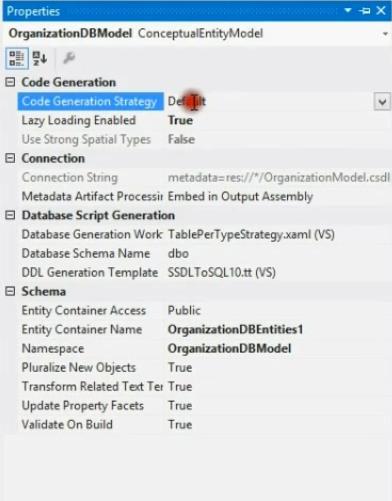
So, you need to perform two steps.
Right click in edmx file go for properties and say Code Generation Strategy to
Default.
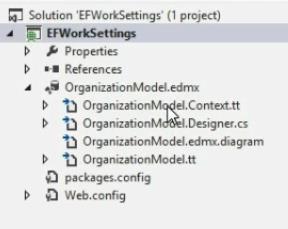
In your OrganizationModel hierarchy you’ll find two files with .tt extension
www.ManzoorTheTrainer.com


25
Entity Framework - Simplified
Simply delete those files.
Now, you can rebuild the project and you’ll see that everything is successful.
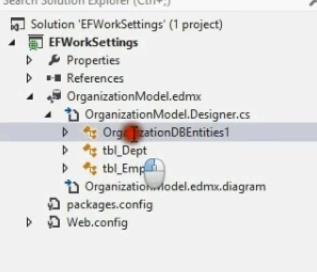
Go for OrganizationDBEntities1 file.
And you’ll find all the things as usual.
These are the two steps that you need to perform if at all you want to work with
Entity Framework on Visual Studio 2012.
Now, what are these tt files, how can we work with tt files? All these things we can
see in our next release.
So, in our next Chapters we will see basic operations i.e., performing insert, update,
delete and read operations from Entity Data Model.
www.ManzoorTheTrainer.com


26
Entity Framework - Simplified
Chapter 5 : Performing an Insert Operation
In this chapter I am going to show you how to perform the insert operation on Entity
Data Model that is in your Entity Framework.
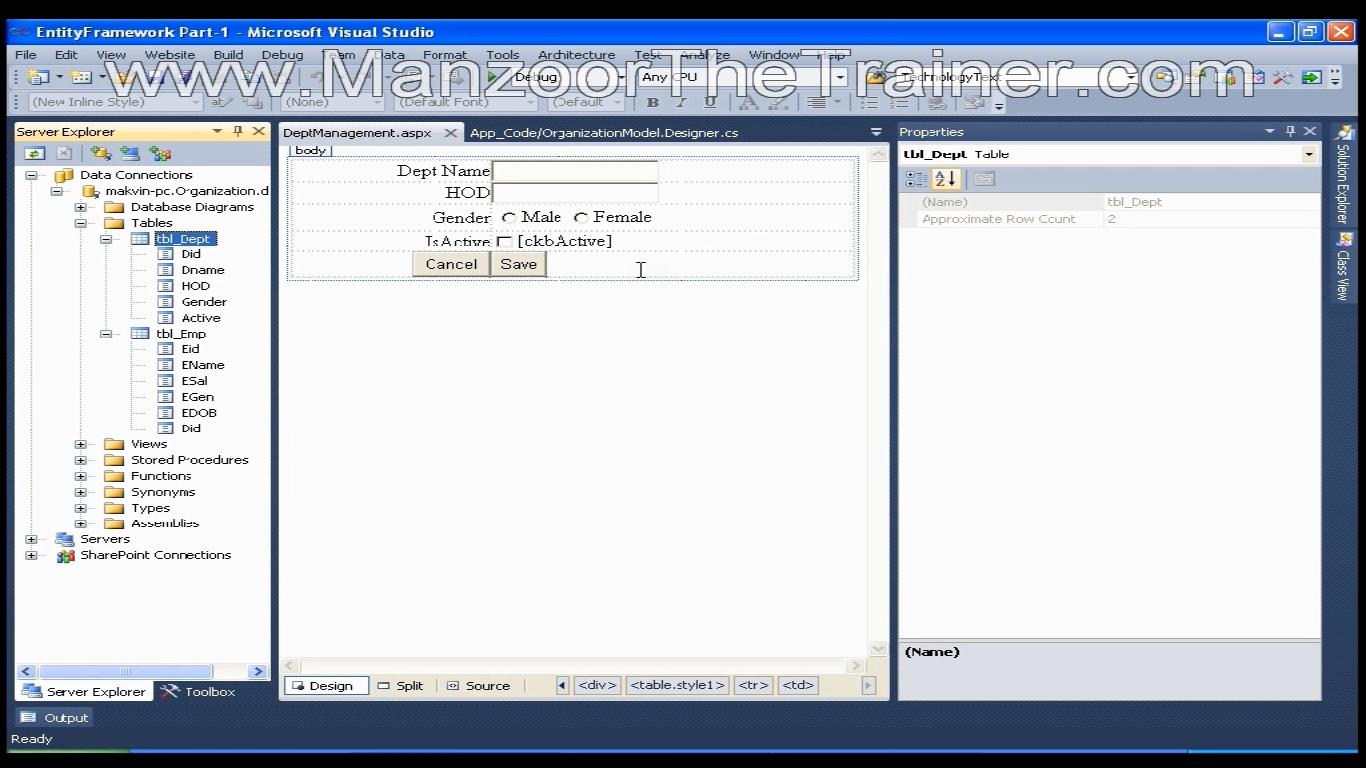
It is very simple. Say, I’ve a form it is a normal ASP.NET form that I’ve created to
insert data into the department table.
As we know that department id is auto generated column we do not require a field
for it on the form.
<table cel padding="0" cel spacing="0" class="style1">
<tr>
<td style="text-align: right">
Dept ID</td>
<td>
<asp:TextBox ID="txt Did" runat="server"></asp:TextBox>
</td>
</tr>
<tr>
<td style="text-align: right">
</td>
<td>
<asp:Button ID="btnSearch" runat="server" onclick="btnSearch_Click"
Text="Search" />
</td>
</tr>
<tr>
<td style="text-align: right">
Dept Name</td>
<td>
<asp:TextBox ID="txt DName" runat="server"></asp:TextBox>
</td>
www.ManzoorTheTrainer.com


27
Entity Framework - Simplified
</tr>
<tr>
<td style="text-align: right">
HOD</td>
<td>
<asp:TextBox ID="txtHOD" runat="server"></asp:Text Box>
</td>
</tr>
<tr>
<td style="text-align: right">
Gender</td>
<td>
<asp:RadioButtonList ID="rblGender" runat="server" RepeatDirection="Horizontal">
<asp:ListItem Value="M">Male</asp:ListItem>
<asp:ListItem Value="F">Female</asp:ListItem>
</asp:RadioButtonList >
</td>
</tr>
<tr>
<td style="text-align: right">
IsActive</td>
<td>
<asp:CheckBox ID="ckbActive" runat="server" />
</td>
</tr>
<tr>
<td style="text-align: right">
<asp:Button ID="btnCancel" runat="server" Text="Cancel" />
</td>
<td>
<asp:Button ID="btnSave" runat="server" OnClick="btnSave_Click" Text="Save" />
<asp:Button ID="btnUpdate" runat="server" onclick="btnUpdate_Click"
Text="Update" />
<asp:Button ID="btnDelete" runat="server" onclick="btnDelete_Click"
Text="Delete" />
</td>
</tr>
<tr>
<td colspan="2" style="text-align: center">
<asp:GridView ID="grdDept" runat="server" CellPadding="4" ForeColor="#333333"
GridLines="None">
<AlternatingRowStyle BackColor="White" ForeColor="#284775" />
<EditRowStyle BackColor="#999999" />
<FooterStyle BackColor="#5D7B9D" Font-Bold="True" ForeColor="White" />
<HeaderStyle BackColor="#5D7B9D" Font-Bold="True" ForeColor="White" />
<PagerStyle BackColor="#284775" ForeColor="White" HorizontalAlign="Center" />
<RowStyle BackColor="#F7F6F3" ForeColor="#333333" />
<SelectedRowStyle BackColor="#E2DED6" Font -Bold="True" ForeColor="#333333" />
<SortedAscendingCel Style BackColor="#E9E7E2" />
<SortedAscendingHeaderStyle BackColor="#506C8C" />
<SortedDescendingCel Style BackColor="#FFFDF8" />
<SortedDescendingHeaderStyle BackColor="#6F8DAE" />
</asp:GridView>
</td>
</tr>
</table>
Next, department name I’ve created a textbox for this for HOD I’ve a textbox, for
gender I’ve a radio button list and for Active flag I’ve IsActive checkbox.
Now, on this save button click I need this data to get inserted into this department
table.
I’ll double click the save button and write code.
www.ManzoorTheTrainer.com


28
Entity Framework - Simplified
As we learnt in our previous chapter if you want to perform anything on Entity Data
Model you need to use a namespace that is nothing but using OrganizationModel;
that we’ve in our solution explorer In Organization Model.
This is the namespace that we add OrganizationModel. And I’ll create an object of
this class that is OrganizationEntities.
OrganizationEntities OE = new OrganizationEntities();
Now I want to perform an insert operation on Department table that means I need to
create the object for tbl_Dept
protected void btnSave_Click(object sender, EventArgs e)
{
OrganizationEntities OE = new OrganizationEntities();
// This is the entity that we got the entity for department table
tbl_Dept d = new tbl_Dept();
//Department ID is auto increment I need not to do anything for this
//HOD Name, txtDName, txtHOD these are al the ID’s of the textboxes that we’ve on the form
d.Dname = txtDName.Text.ToString();
d.HOD = txtHOD.Text.ToString();
d.Gender = rblGender.SelectedValue.ToString();
//This is of type BooleanWhenever the checkbox is checked I should set it to true else to false
d.Active = ckbActive.Checked;
//Now department object is ready. I need to insert this department d in the department table. So, I’l
//perform that operation with the help of OrganizationEntities object
OE.AddTotbl_Dept(d);
www.ManzoorTheTrainer.com


29
Entity Framework - Simplified
//Final y save changes. It is going to reflect in the database.