

Cubase vst- Getting into the Details by - HTML preview
Download the book in PDF, ePub, Kindle for a complete version.
Track Views and Window Sets Track Views
When you are working in the Arrange window, you will often want to use different Track Column layouts for different situations. You may for example want a minimum number of Track columns to be shown when editing in the Part Display, and more columns to be shown when you are making Play parameter settings. To be able to quickly switch between such Track Column configurations, you can use the Track View feature.
Storing Track Views
1. Configure the Track Columns as you want them.2. Hold down [Alt] and click in the Track Column heading area.
A pop-up menu appears.
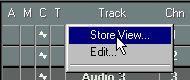 The Track View pop-up menu.
3. Select “Store View...” from the pop-up menu.
A name dialog appears.
4. Enter a name for the Track View and click OK.
P Track Views are stored in the Cubase Preferences. This means that any Track Views you create will automatically be available in all Songs.
Recalling Track Views
1. Hold down [Alt] and click in the Track Column heading area.
The Track View pop-up menu appears. Any Track Views you have stored are listed at the bottom of the pop-up menu.
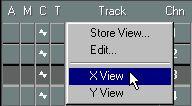 2. Select the Track View you want to recall.
The Track Columns are reconfigured according to the stored settings.
Renaming and Deleting Track Views
1. Hold down [Alt] and click in the Track Column heading area.The Track View pop-up menu appears.
2. Select “Edit...” from the pop-up menu.
A dialog appears, with the existing Track Views listed.
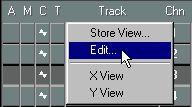
3. To rename a Track View, double click on it in the list and type in a new name.
4. To delete a Track View, select it and click “Remove”.
5. Click “Exit” to close the dialog.