

Cubase vst- Getting into the Details by - HTML preview
Download the book in PDF, ePub, Kindle for a complete version.
Setting Out Hitpoints
Using the Mouse
The obvious way of setting out Hitpoints is using the Pencil in the Toolbox. This works just as with Time Signature changes (see page 560), just select the Pencil from the Toolbox and click or drag in a Hitpoint Strip (see previous chapter). The Snap values restricts your input as usual.
P Please note that when settings out Meter Hits, you may want to turn off Snap completely.If you hold down [Alt] while dragging, you get two linked Hitpoints, but more about that on page 579.
Via MIDI
You can use MIDI to input Time Hits, whether Cubase VST is playing or not. 1. Activate the MIDI In button on the Status Bar.

The MIDI In button.
2. If so desired (see below) activate playback.
3. “Send” in some MIDI Notes, for example by tapping a MIDI keyboard. When the MIDI In button is activated, MIDI notes coming in while the Master Track editor is open will be converted to Time Hits.
4. When you are done, turn off the MIDI In button.P For this function to work, you don’t have to be in play or record mode. This means you can add hitpoints even when syncing to time code running very slow or even at still frame (using VITC time code converted to MIDI Time Code, for example). This will allow you to input Hits “manually” with very high precision.
Using Fill
To create evenly spaced Meter Hits, there is a special item on the Do pop-up menu, called “Fill meter hitpoints”. This will fill the Meter Hit strip with Hitpoints, between the Left and Right Locator, spaced according to the Snap value.
Mirror
This function, found on the Do pop-up menu, will mirror the selected Hitpoints onto the “other side”. A Time Hit will get a Meter Hit at the corresponding position, and vice versa.
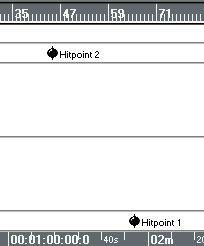 Selecting two Hitpoints and then Mirror...
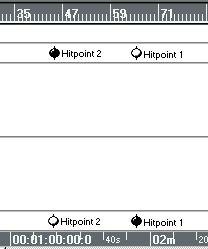 ...creates two new Hitpoints.