

Cubase vst- Getting into the Details by - HTML preview
Download the book in PDF, ePub, Kindle for a complete version.
Editing several Tracks
You may edit several Tracks simultaneously in Score Edit. The Tracks are shown as multiple staves, tied together by bar lines and placed in the order they appear in the Track List.
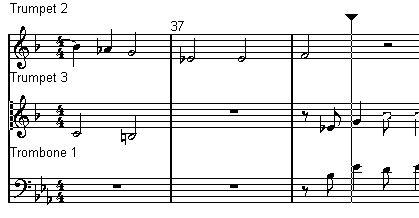
• If you need to rearrange the staves: close the editor, go back into the Arrange window, drag the Tracks to the order you want them, and open Score Edit again.
The Active Staff
Just as in the other editors, all MIDI input (as when recording from your instrument) is directed to one of the Tracks, here called the Active Staff. The Active Staff is indicated by a black rectangle in the left part of the first visible bar.
The Active Staff rectangle.
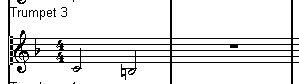
To change Active Staff:
• Click anywhere in the Staff you want to activate.
or
Editing Muted Tracks
If you are editing a Track that is muted in the Arrange window, a black dot will be shown to the left of its staff to indicate this:This Track is muted.
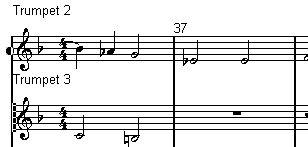
You can unmute and mute Tracks from within Score edit in the following way:
1. Make the staff (Track) you want to mute or unmute the Active Track.
2. Press [Alt]-[M] on the computer keyboard.
This is the default key command - you can change this in the Preferences–Key Commands– Arrange/Editors dialog (“Mute Selected Track”).