

Cubase vst- Getting into the Details by - HTML preview
Download the book in PDF, ePub, Kindle for a complete version.
Entering notes and chords
1. Play one key or a chord.
If you just played one key it appears as soon as you release it. If you play a chord it appears when you release the last key. In either case, the velocity you played is recorded with the note. No matter how long you hold down the key, the note will get the length set in the Quantize box.
3. Enter the notes for the next position.
1. Start by setting the Step Position.
2. Press and release the first key. The note appears and the Step Position box advances one step.
3. Press and release a chord. It appears and the Step Position advances again.
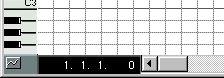
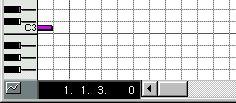
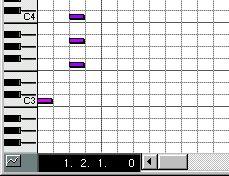
Adding Rests
To move one step without entering any notes, press the default [Tab] key on the computer keyboard. Alternatively, in the Preferences–MIDI–Other dialog, you can set a MIDI Controller to remote control this command (Controller for Step Mode Tapping).
Changing note values and positions as you go along
• If you want to enter notes of another length, simply change the Quantize value at any point.• If you want to input notes with a different “spacing” simply adjust the Snap value.
• If you want to move to a completely new position, change the Song Position or use Fast Forward or Rewind.
If you change the Song Position...
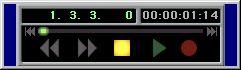 ...the Step Position is set to the same value.
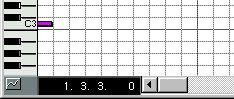
• To move one step back or forward in time, use the [←] and [→] keys. The Step Position Box shows you the current position.
If you make a mistake
If for example you entered a note with the wrong pitch or made a mistake when playing a chord, press [Backspace]. This deletes the last note/chord you entered, and moves the Step Position one step backwards. You can press this key repeatedly to “delete backwards”.
If you have this, and press [Backspace]...
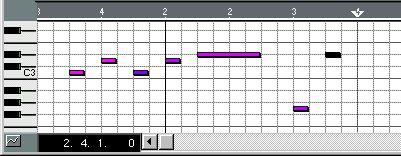 ...the last entered notes are deleted and the Step Position moves back one step.
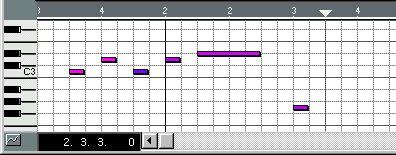 You can also use the tools and menu for editing (deleting, moving etc).