

Cubase VST-Score Printing and Layout by - HTML preview
PLEASE NOTE: This is an HTML preview only and some elements such as links or page numbers may be incorrect.
Download the book in PDF, ePub, Kindle for a complete version.
Download the book in PDF, ePub, Kindle for a complete version.
Changing the Note Head Color
You can give a note or a group of notes a certain color using the color palette popup menu on the Status Bar:1. Select the note or notes that you want to color.
The To pop-up menu applies as always. If you want to color all notes, make sure the To popup menu is set to “All”.
The color is applied to the note head(s) and accidentals.
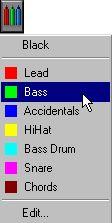
Editing the Colors
You can edit the existing colors and names, or add new colors, in the following way: 1. Select the “Edit...” option at the bottom of the color pop-up menu.A slightly modified standard Windows Colors dialog appears.
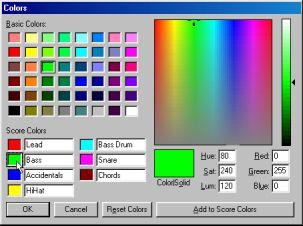 2. To edit a color, click on the color box to the left of the name.
3. Adjust the color, or pick one from the Basic Colors.
For more info, see the Control Panel description in your Windows documentation. 4. Click “Add to Score Colors”.
Adjust the next color and its name in the same manner.
5. To change the name of the color, click on its name field.
6. When you are done, click on the OK button to return to Score Edit.
About Additional Colors
If you have activated the option “Use Colors for Additional meanings” in the Preferences–Scores–Editor Behaviour dialog, some objects will automatically be displayed in color, to indicate that they are “special” in any way. For example, slurs and note symbols that are moved from their default positions (see page 208) will be displayed in red.