

Cubase VST-Score Printing and Layout by - HTML preview
Download the book in PDF, ePub, Kindle for a complete version.
Multiple Rests
Multiple consecutive rests can be automatically consolidated into multi-rest measures as follows:1. Open the Layout Settings dialog.
2. Set Multi Rests to specify how many empty bars should be “allowed” before Cubase should collect them into a multi-rest.
For example, a value of 2 means that three or more consecutive empty bars will be collected into a multi-rest. The value “Off” means “never”.
The multi rests now appear in the score.
A Multi Rest over three bars.
Splitting Multi Rests
To divide one long multiple rest into many shorter, proceed as follows: 1. Double click on the Multi Rest symbol.The Split Multi Rest dialog appears:
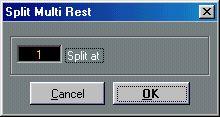
2. In the dialog box, enter the bar number where you want the first split.
3. Click OK.
4. If you need more splits, double click on any multi rest symbol and proceed as above.
Multi Rest Appearance
If you open the Preferences–Score–Beams and Bars dialog, you will find a couple of settings that determine the appearance of multi rests:Show Multi-Rest number above Symbol.
Show Multi-Rests in Church Style
Show Barnumber Range with Multi-Rests
When this is activated, the numbers are shown above the multi-rest symbol, instead of below it.
When this is activated, and barnumbers are displayed, the barnumbers of a multi-rest will be shown as a range.
It is also possible to adjust the height and width of the multi-rest symbol (in the Preferences–Score–Spacing dialog) and to select a font for the multi-rest numbers (in the Preferences–Score–Global Text dialog).