

Collaborative Statistics by Robert Gallagher - HTML preview
Download the book in PDF, ePub, Kindle for a complete version.
• Continue in the same manner until all data values are entered.
Step 10. In ❬▲✷❪, enter the frequencies for each data value in ❬▲✶❪.
• Type in a frequency and enter it. (If a data value appears only once, the frequency is "1")
,
• Continue in the same manner until all data values are entered.
Step 11. Access statistics mode.




















































APPENDIX
573
Step 12. Navigate to <❈❆▲❈>
Step 13. Access <✶✿✶✲✈❛r ❙t❛ts>
Step 14. Indicate that the data is in ❬▲✶❪...
, ❬▲✶❪ ,
Step 15. ...and indicate that the frequencies are in ❬▲✷❪.
, ❬▲✷❪ ,
Step 16. The statistics should be displayed. You may arrow down to get remaining statistics. Repeat as neces-
sary.
13.9.3 Drawing Histograms
NOTE: We will assume that the data is already entered
We will construct 2 histograms with the built-in STATPLOT application. The first way will use the default
ZOOM. The second way will involve customizing a new graph.
Step 1. Access graphing mode.
, ❬❙❚❆❚ P▲❖❚❪
Step 2. Select <✶✿♣❧♦t ✶> To access plotting - first graph.
Step 3. Use the arrows navigate go to <❖◆> to turn on Plot 1.
<❖◆> ,
Step 4. Use the arrows to go to the histogram picture and select the histogram.
Step 5. Use the arrows to navigate to <❳❧✐st>
Step 6. If "L1" is not selected, select it.
, ❬▲✶❪ ,
Step 7. Use the arrows to navigate to <❋r❡q>.
Step 8. Assign the frequencies to ❬▲✷❪.
, ❬▲✷❪ ,
Step 9. Go back to access other graphs.
, ❬❙❚❆❚ P▲❖❚❪
Step 10. Use the arrows to turn off the remaining plots.
Step 11. Be sure to deselect or clear all equations before graphing.
To deselect equations:
Step 1. Access the list of equations.
Step 2. Select each equal sign (=).
Step 3. Continue, until all equations are deselected.
To clear equations:




















































574
APPENDIX
Step 1. Access the list of equations.
Step 2. Use the arrow keys to navigate to the right of each equal sign (=) and clear them.
Step 3. Repeat until all equations are deleted.
To draw default histogram:
Step 1. Access the ZOOM menu.
Step 2. Select <✾✿❩♦♦♠❙t❛t>
Step 3. The histogram will show with a window automatically set.
To draw custom histogram:
Step 1. Access
to set the graph parameters.
Step 2.
• Xmin = −2.5
• Xmax = 3.5
• Xscl = 1 (width of bars)
• Ymin = 0
• Ymax = 10
• Yscl = 1 (spacing of tick marks on y-axis)
• Xres = 1
Step 3. Access
to see the histogram.
To draw box plots:
Step 1. Access graphing mode.
, ❬❙❚❆❚ P▲❖❚❪
Step 2. Select <✶✿P❧♦t ✶> to access the first graph.
Step 3. Use the arrows to select <❖◆> and turn on Plot 1.
Step 4. Use the arrows to select the box plot picture and enable it.
Step 5. Use the arrows to navigate to <❳❧✐st>
Step 6. If "L1" is not selected, select it.
, ❬▲✶❪ ,
Step 7. Use the arrows to navigate to <❋r❡q>.
Step 8. Indicate that the frequencies are in ❬▲✷❪.
, ❬▲✷❪ ,
Step 9. Go back to access other graphs.
, ❬❙❚❆❚ P▲❖❚❪
Step 10. Be sure to deselect or clear all equations before graphing using the method mentioned above.
Step 11. View the box plot.
, ❬❙❚❆❚ P▲❖❚❪
APPENDIX
575
13.9.4 Linear Regression
13.9.4.1 Sample Data
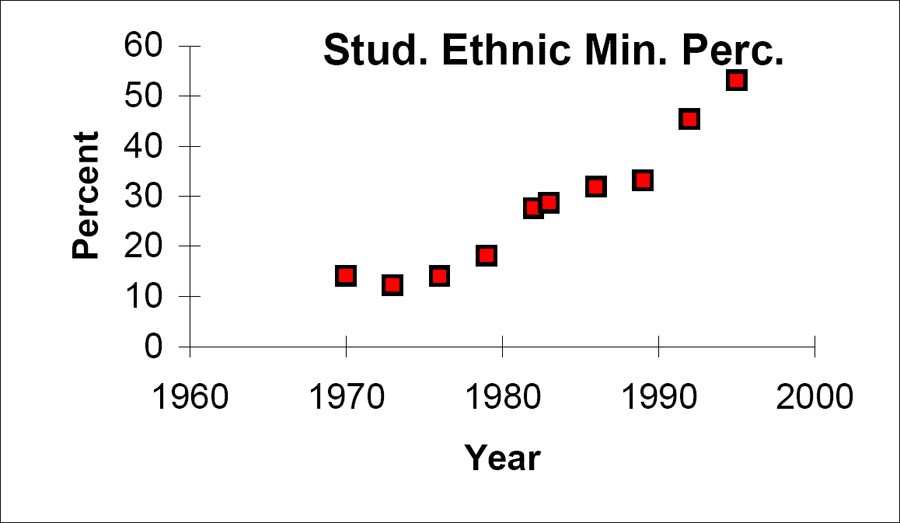
The following data is real. The percent of declared ethnic minority students at De Anza College for selected
years from 1970 - 1995 was:
Year
Student Ethnic Minority Percentage
1970
14.13
1973
12.27
1976
14.08
1979
18.16
1982
27.64
1983
28.72
1986
31.86
1989
33.14
1992
45.37
1995
53.1
Table 13.19: The independent variable is "Year," while the independent variable is "Student Ethnic Minority
Percent."
Student Ethnic Minority Percentage
Figure 13.6: By hand, verify the scatterplot above.



























































576
APPENDIX
NOTE: The TI-83 has a built-in linear regression feature, which allows the data to be edited.The
x-values will be in ❬▲✶❪; the y-values in ❬▲✷❪.
To enter data and do linear regression:
Step 1. ON Turns calculator on
Step 2. Before accessing this program, be sure to turn off all plots.
• Access graphing mode.
, ❬❙❚❆❚ P▲❖❚❪
• Turn off all plots.
,
Step 3. Round to 3 decimal places. To do so:
• Access the mode menu.
, ❬❙❚❆❚ P▲❖❚❪
• Navigate to <❋❧♦❛t> and then to the right to <✸>.
• All numbers will be rounded to 3 decimal places until changed.
Step 4. Enter statistics mode and clear lists ❬▲✶❪ and ❬▲✷❪, as describe above.
,
Step 5. Enter editing mode to insert values for x and y.
,
Step 6. Enter each value. Press
to continue.
To display the correlation coefficient:
Step 1. Access the catalog.
, ❬❈❆❚❆▲❖●❪
Step 2. Arrow down and select <❉✐❛❣♥♦st✐❝❖♥>
... ,
,
Step 3. r and r2 will be displayed during regression calculations.
Step 4. Access linear regression.
Step 5. Select the form of y = a + bx
,
The display will show:
LinReg
• y = a + bx
• a = −3176.909
• b = 1.617
• r2 = 0.924
• r = 0.961


































Find Your Next Great Read
Describe what you're looking for in as much detail as you'd like.
Our AI reads your request and finds the best matching books for you.
Popular searches:
Create a Free Account to Download
Join 9.7 million members — your free account takes a minute, and your first book is ready right away