

How to start blogging by Ramesh - HTML preview
Download the book in PDF, ePub, Kindle for a complete version.
Chapter 3: Setting Up a Domain, Hosting, and
WordPress
The no.1 thing you learn about how to set up a blog is that no blog can exist without a domain name (its unique address on the internet) and a web server (its home on the internet). Then, there’s the wildcard – the third element – WordPress!
15 https://www.codeinwp.com/blog/wordpress-org-vs-wordpress-com/
Picking a domain name is often one of the most fun parts about the whole process of learning how to set up a blog. Picking a host, however, is the exact opposite.
Let’s start with the former:
How to pick a domain name for your new blog
Beginner's note: What is a domain name?
● A domain name consists of two main parts: your unique domain identifier, and a domain
extension. For us, codeinwp is the identifier and .com is the extension (also known as the TLD). In your case, the former can be any sequence of alphanumeric characters plus
hyphens. The TLD you get to choose from a range of pre-existing options – with .com being the most popular one. A domain name will usually cost you around $10-$15 / year.
...
Cutting straight to the chase, a good domain name needs to have at least three main characteristics:

● 🍎 It needs to be unique and brandable. A good benchmark is to imagine your domain
name on the side of your office building. Does it look good there?

● 🏗 It needs to be clear. No weird combination of characters. A simple sequence of 1-3
words is best. You best use your first name / last name only if the website you’re building is to grow your own personal brand.

● 📝 It needs to be easy to memorize. If you need to spell it out, it won’t be easy to
memorize.

💡 PRO TIP: When learning how to set up a blog, a good starting point is to make a list of 3-5 domain names that seem the most sensible and then test them out with friends, family, and coworkers to pick the winner.
With a good idea of what your domain name is going to be, it’s time to pick a good hosting platform:
How to pick a good web host for a blog
The topic of hosting is boriiiiinnnng. Like, really.
I mean, once you get down to it, a web server is just a computer that’s turned on and hooked up to the internet 24/7, sitting somewhere in a dark server room. There’s nothing romantic or “cool” about it. It’s just numbers and data being sent back and forth.
With that image in your head, picking a good host for WordPress can be tough, especially once you do some research of your own and get exposed to many a hosting company’s promotional materials. Basically, they all promise extremely good performance and reliable service.
The reality, however, can be different.
So without boring you with the details, we’ve invested a lot in researching the hosting market for WordPress, testing different hosting firms that are out there, analyzing their performance in real life setups, and even surveying users to find what they think about their blog hosts.
If you’re interested in getting down to the details of it all, check any of these out:
● 2018 WordPress Hosting Survey – Aka “The Good, the Bad, and the Ugly of WordPress
Hosting” 16
● Best WordPress Hosting Providers Compared [By the Numbers] 17
● Best Cheap Hosting Providers Compared (From $0.82 / Month) 18
16 https://www.codeinwp.com/blog/wordpress-hosting-survey-results/ 17 https://www.codeinwp.com/blog/best-wordpress-hosting/ 18 https://www.codeinwp.com/blog/best-cheap-wordpress-hosting/
● Best Web Hosting for Small Business 19
If you can’t be bothered and simply want me to recommend you a platform already then just use SiteGround . Basically, no matter what kind of tests we do, and no matter what kind of 20
questions we ask the community, it’s really hard to come across any negative reviews of SiteGround. They simply know what they’re doing when it comes to hosting a WordPress blog.
Plus, a good hosting plan with them – one that will be more than enough to get you started with a new blog – is only around $4 / month.

👉 How to set up a blog: get a domain name, hosting, and
WordPress installed all in one go
Okay, so here’s the best part:
Even though learning how to set up a blog involves getting three separate pieces of technology aligned – hosting, domain, WordPress – you can actually have it all taken care of in one go, and in a very user-friendly manner.
To make this happen, go to SiteGround – the hosting platform that we recommend based on its positive reviews across the web and our own tests.
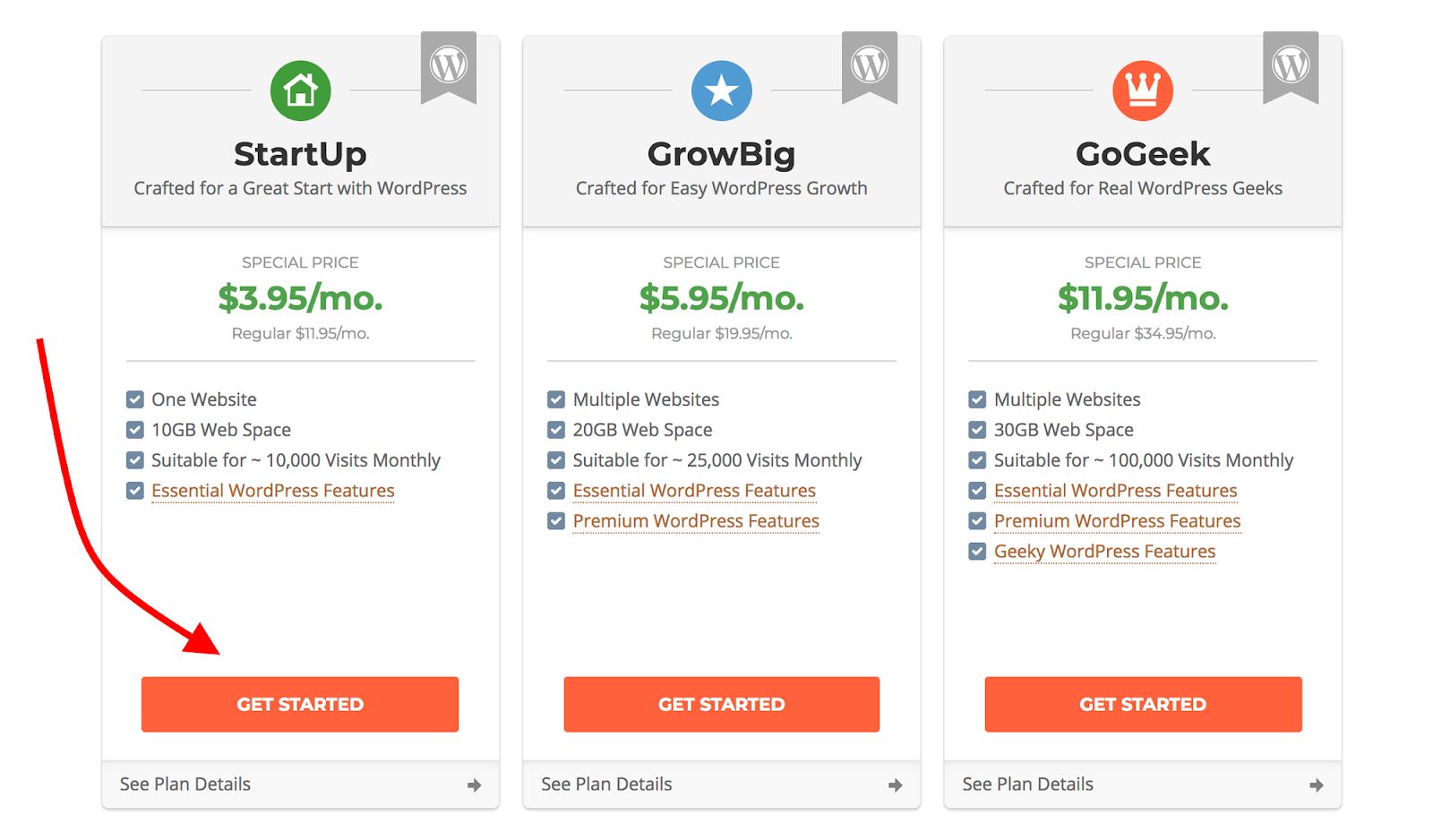
Once there, pick a hosting plan. In most cases, the cheapest option – StartUp – will be enough:
19 https://www.codeinwp.com/blog/best-web-hosting-for-small-business/ 20 https://www.siteground.com/wordpress-hosting.htm
The next step is where you can register a domain name that you’ll use for your new blog:
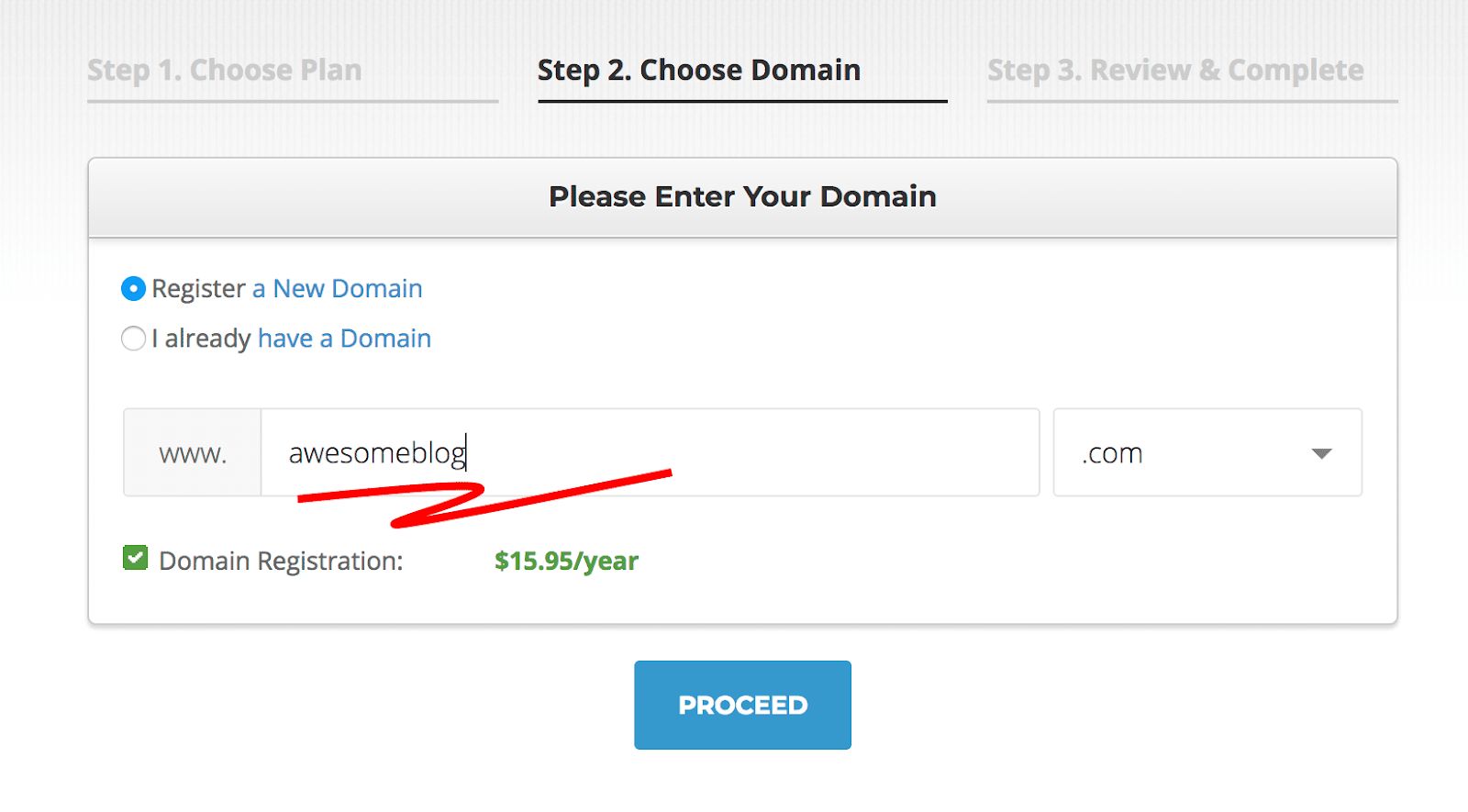
Note. Registering a new domain name with SiteGround is $15.95 / year. If you already have a domain name that you’d like to use, select “I already have a Domain” instead of creating a new one. Additional steps will be required to hook up that domain name to your new blog. SiteGround will guide you through every step of the way.
After that, you just need to provide your personal info and payment details, and finalize the setup.
When you’re done, it’s time to have WordPress installed. For that, access your Customer Area and follow SiteGround’s official guide . 21
During the installation process, SiteGround will also let you pick a design/theme for your new blog and have everything set up for you.

🎨 Quick note on finding and changing themes / blog designs
The great thing about WordPress is that you’re not stuck with the initial design that you chose for your blog during setup or with the default WordPress theme. You can always come back to this part after a while and install a new theme that’s perhaps better-looking or simply follows the modern trends better.
Either way, you can find new themes at:
● WordPress.org 22
● ThemeIsle.com 23
● ThemeForest 24
● Elegant Themes 25
● or any other of the popular theme stores 26

📚 Further reading:
● https://themeisle.com/blog/how-to-choose-a-wordpress-theme/
● https://themeisle.com/blog/secure-wordpress-theme/
● https://themeisle.com/blog/how-to-change-a-wordpress-theme/
21 https://www.siteground.com/tutorials/wordpress/siteground-wizard-install/ 22 https://wordpress.org/themes/
23 https://themeisle.com/
24 https://themeforest.net/
25 https://www.elegantthemes.com/
26 https://www.codeinwp.com/blog/wordpress-theme-shop-directory-2016/
Just getting started with WordPress? Here’s how to use the
interface
Note. If you’re already familiar with the WordPress interface, feel free to skip to the next chapter.
WordPress has evolved quite a bit since its humble beginnings in 2003. What started as a simple blogging platform, is now capable to run any type of website, no matter how big or small.
However, this richness of features can also be slightly problematic for someone who’s just getting to know how to set up a blog with WordPress for the first time.
So here’s your in-the-nutshell guide through the WordPress user interface and some of the key features:
First off, most of your interaction with WordPress will happen through the admin panel which
you can access by going to yoursite.com/wp-admin. After logging in, you’ll see something like this:
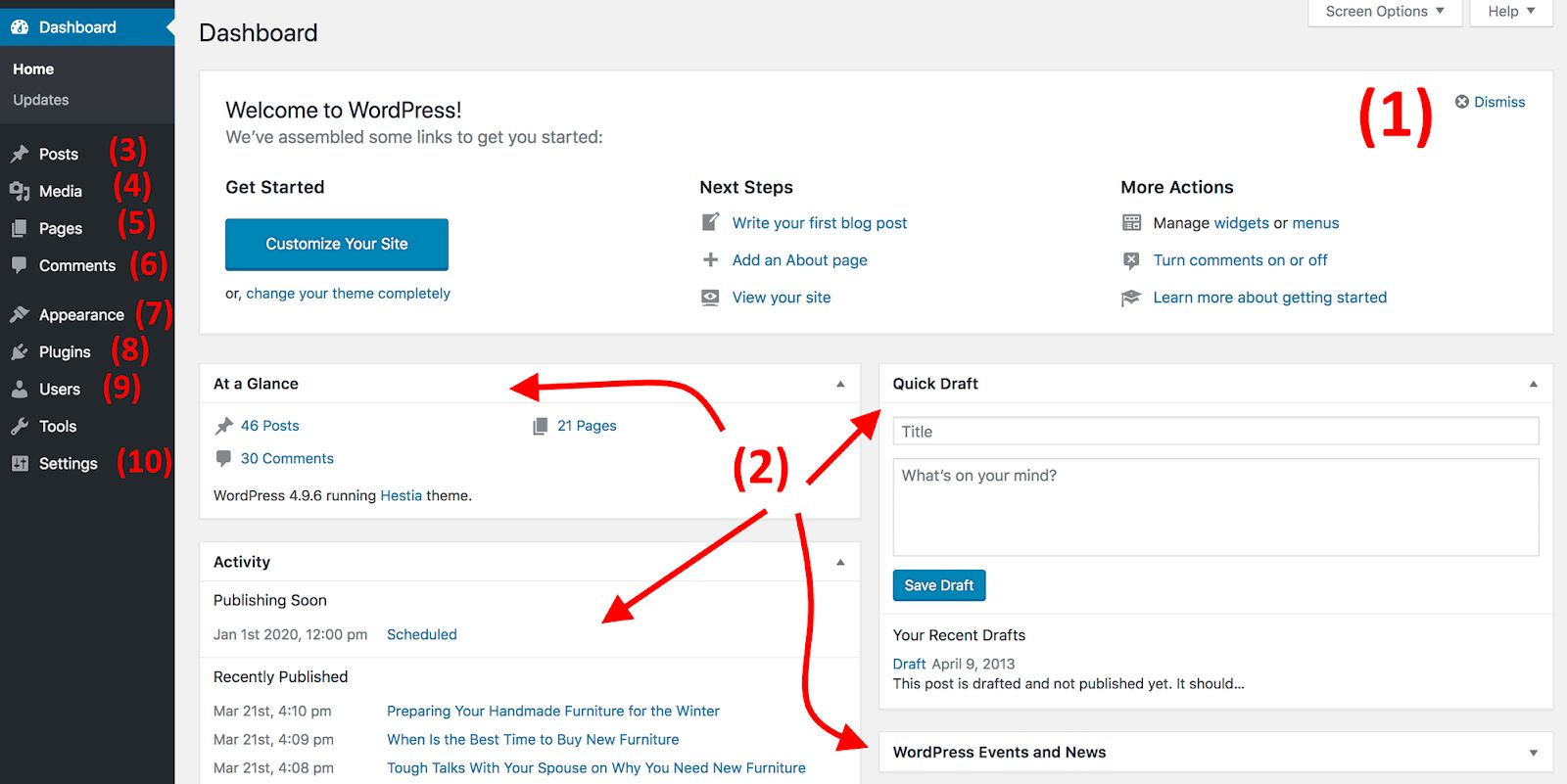
● (1) Welcome message – This is where WordPress points you towards some of the most
important areas of the admin panel. We’ll be interacting with many of them later on in this guide.
● (2) Some general blocks of info letting you know about what’s been going on with your
blog recently.
● (3) Posts – this is where you can go to work on your blog posts.
● (4) Media – here you’ll find a library of all your media (images) that have been uploaded
to the blog.
● (5) Pages – the interface works very similarly to posts, but meant for your blog’s
sub-pages.
● (6) Comments – this is where you can moderate comments left by your readers.
● (7) Appearance – go here to adjust the way your blog looks, e.g. change your theme
entirely or customize how certain things are displayed.
● (8) Plugins – this is where you can install new plugins.
● (9) Users – go here to manage your user account and the accounts of other people who
have access to the blog.
● (10) Settings – this is where you’ll spend the most of your time when setting up a blog –
every key setting for your blog can be found here.
I’ll cover each of these sections in detail as we proceed through this guide.