

How To Create You Own Website - Step by Step Guide by Jon Delectar - HTML preview
Download the book in PDF, ePub, Kindle for a complete version.
Explanation
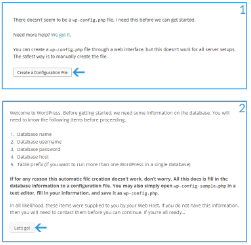
1. Click on the "Create a Configuration File" button.
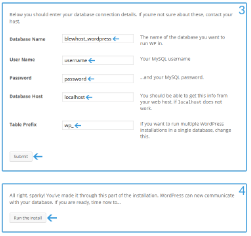
2. Click on the "Let's go!" button.
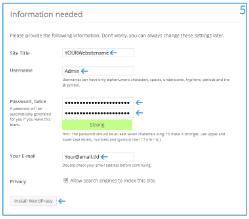
3. Insert the following information’s "database name", "user name", "password", "database host", "table prefix" for example ("blewhost_WordPress", "user", "password123", "localhost", "wp_").
4. Press the "Run the install" button.
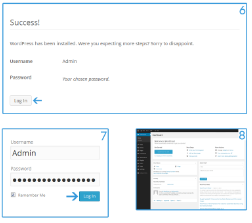
5. Insert the following information’s "Site Title", "Username", "Password", "Your Email", "Privacy" for example ("Blog123", "Admin", "password123", "your@email.tld", "checked"). !Privacy should be enabled!
6. Click on "Log In".
7. Login at (yourdomain.tld/wp-admin) with your information’s for example ("Admin", "password123") and press the "Log In" button.
8. Congratulation you installed WordPress successfully now you see the administration interface.